

Configure an AI agent
Open an agent from Automate → AI Agents by clicking its name.
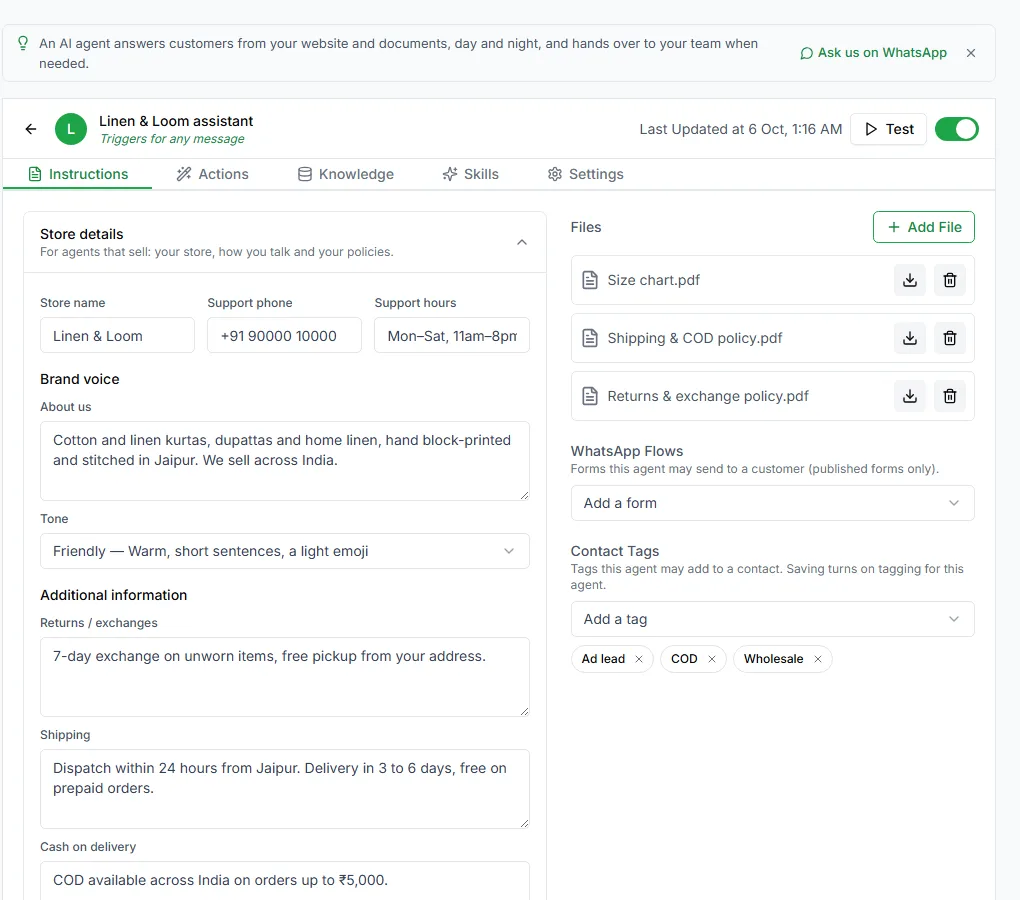
The page has five tabs, Instructions, Actions, Knowledge, Skills and Settings. At the top are Test, the on/off switch, and Publish. Use Test to chat with the agent before any customer does, and Publish to put your changes live.
1. Instructions
Section titled “1. Instructions”Instructions tell the agent how to behave. They make the biggest difference to answer quality: vague instructions give vague answers.
Write them in plain words: the tone to use, what the agent should and shouldn’t do, what to do when it doesn’t know, and when to hand over to a person.
Below the instructions you can add details about your business: Store details, Brand voice and Additional information, plus the WhatsApp Flows and Contact Tags the agent may use.
Files and mentions
Section titled “Files and mentions”The Files panel has Add File. Attach documents the agent should use, then point to one in your instructions by typing @ and its name:
When a customer asks about returns, follow @returns-policy.pdf exactly.
Typing @ also lets you mention actions, knowledge bases, tags and forms.
Click Save Changes to save, or Reset to undo what you’ve typed since the last save.
2. Actions
Section titled “2. Actions”Actions are things the agent can do, not just say. Every agent has five built-in System Actions:
| Action | What it does |
|---|---|
| Assign to | Hands the chat to a teammate |
| Resolve conversation | Marks the chat resolved |
| Add conversation note | Adds a note only your team can see |
| Mark as spam | Marks the chat as spam |
| Get current date and time | Tells the agent the current time, so it can work with dates |
Your own API actions
Section titled “Your own API actions”You can also let the agent call your own system, for example to look up an order:
| Field | Notes |
|---|---|
| Name | A short name such as check_order_status |
| Type | API Call |
| Method Type | GET, POST and so on |
| Description | What the action does and when to use it. The agent decides from this text, so be specific. |
| Process in background | Run the call without making the customer wait |
| URL | The address, with variables: https://api.example.com/orders/{{order_id}} |
| Headers / Query Params / Params | Key and value rows for each part of the request |
| Variable Configuration | Each value the agent must fill in, with a type and a description |
The variable descriptions matter as much as the URL: they’re how the agent knows what to put in {{order_id}}.
3. Knowledge
Section titled “3. Knowledge”The Knowledge tab picks which knowledge bases this agent can use. Choose one or more and save.
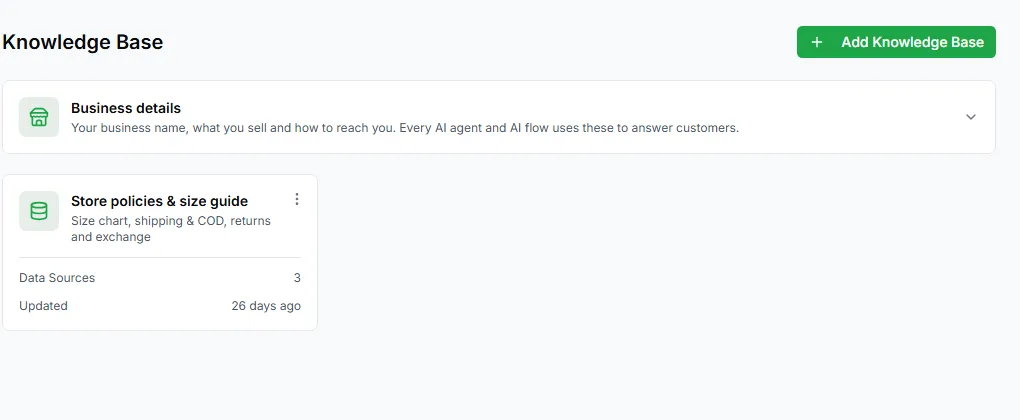
Knowledge bases are managed in Knowledge Base in the sidebar (or click Manage Knowledge Bases). Each one can hold:
- File Upload: .txt, .md, .pdf, .xlsx, .docx or .csv files
- Website Link: pages from your website
- Q&A: questions and answers you type in
Keeping knowledge bases separate means one can serve several agents, and each agent only sees what it should. For example, a support agent gets the policy knowledge base and a sales agent gets the product and price list.
4. Skills
Section titled “4. Skills”Skills are reusable blocks of instructions you can give to several agents, so shared behaviour lives in one place.
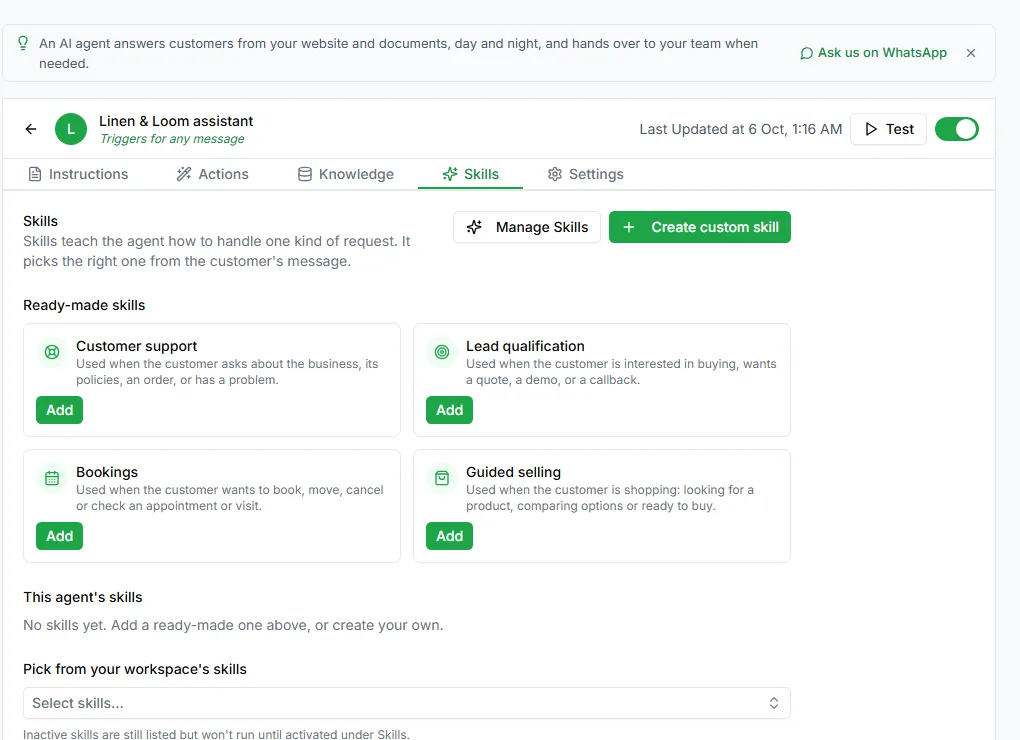
Choose from Ready-made skills, see This agent’s skills, or click Manage Skills to create your own.
5. Settings
Section titled “5. Settings”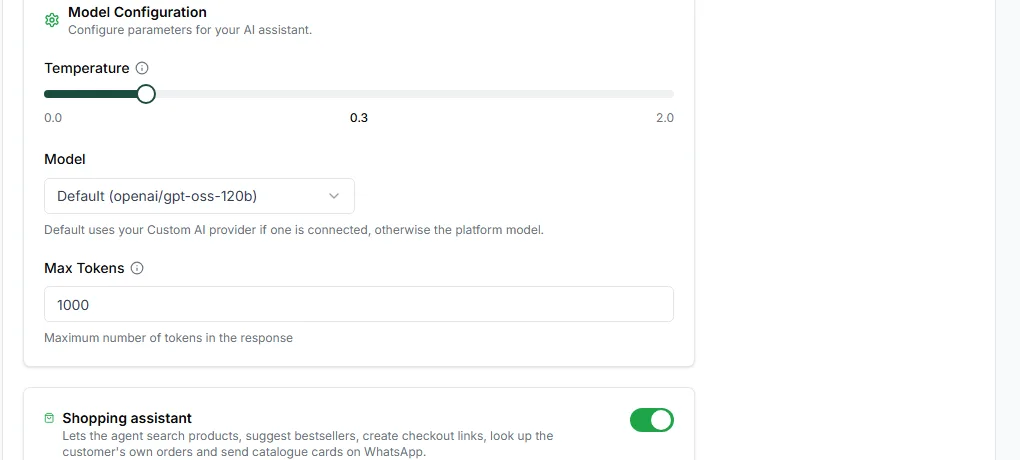
Test numbers
Section titled “Test numbers”Add your own WhatsApp number under Test numbers. Test numbers always chat with your latest unpublished changes, even before the agent is switched on, so you can try it on a real phone. Everyone else gets the published version.
- Model: the AI model the agent uses.
- Temperature: from 0 to 2. Lower gives focused, consistent answers; higher gives more varied ones. Support agents usually want a low value.
- Max Tokens: the longest reply the agent can write.
What the agent can read
Section titled “What the agent can read”- Image Processing: understand photos customers send
- Audio Processing: understand voice notes customers send
- Document Processing: read documents customers send
Turn off the ones you don’t need.
Replies
Section titled “Replies”Delay Response sends a short holding message while the agent works out its answer. Turn it on and set the text in Processing Message, for example Give me a moment….
The settings page also has sections for shopping help, tagging contacts and managing bookings.
Click Save Changes, then Publish to put the new settings live.