

Custom API webhooks
Custom API webhooks let another system, such as your CRM, website, a form or your own backend, send WhatsApp messages through LoopChat. LoopChat gives you a webhook address. You show it one real request, set up a workflow that says who to message and which template to send, and from then on every request sends a message.
LoopChat captures a real request from your system first, so you build the workflow from the data that actually arrives rather than guessing.
Where to find it
Section titled “Where to find it”Open Configure → Integration and click the Custom API card.
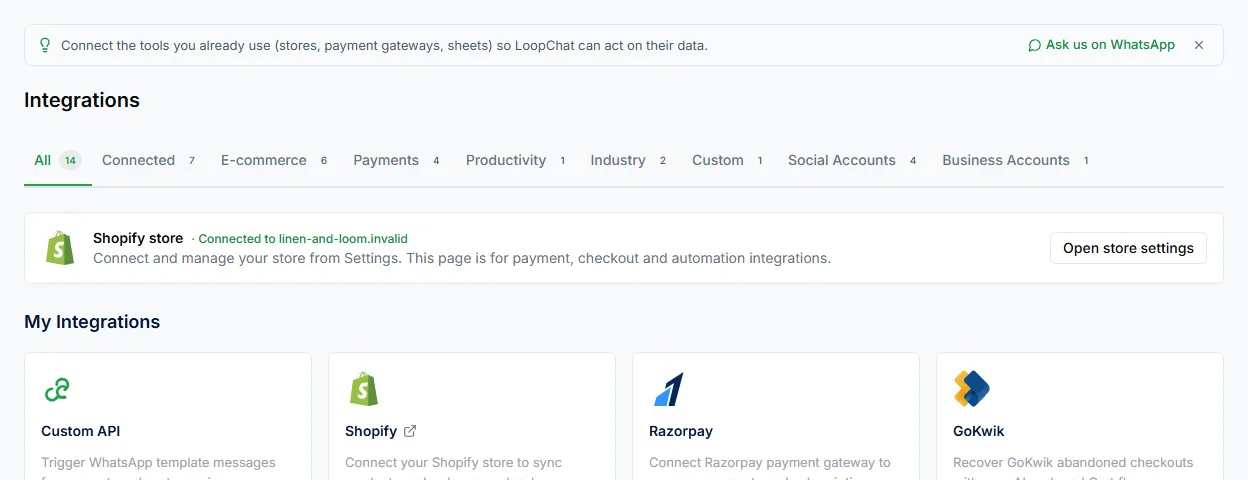
Choose the WhatsApp number to use, then look under Your webhooks. Each webhook shows how many requests it has received and how many messages it has sent.
The tabs
Section titled “The tabs”Each webhook has four tabs: Overview, Configuration, Workflows and Logs.
Step 1: Create a webhook
Section titled “Step 1: Create a webhook”Click Connect, enter a webhook name and click Submit. LoopChat creates a unique webhook address for it.
Step 2: Copy the webhook address
Section titled “Step 2: Copy the webhook address”The Configuration tab shows:
| Field | Notes |
|---|---|
| Integration Name | The name you gave it |
| WhatsApp Channel | The number messages are sent from |
| Webhook URL | The address to call. It can’t be edited; use the copy button. |
| Webhook Secret | The secret part of the URL. Regenerate Secret makes a new one, and the old URL stops working. |
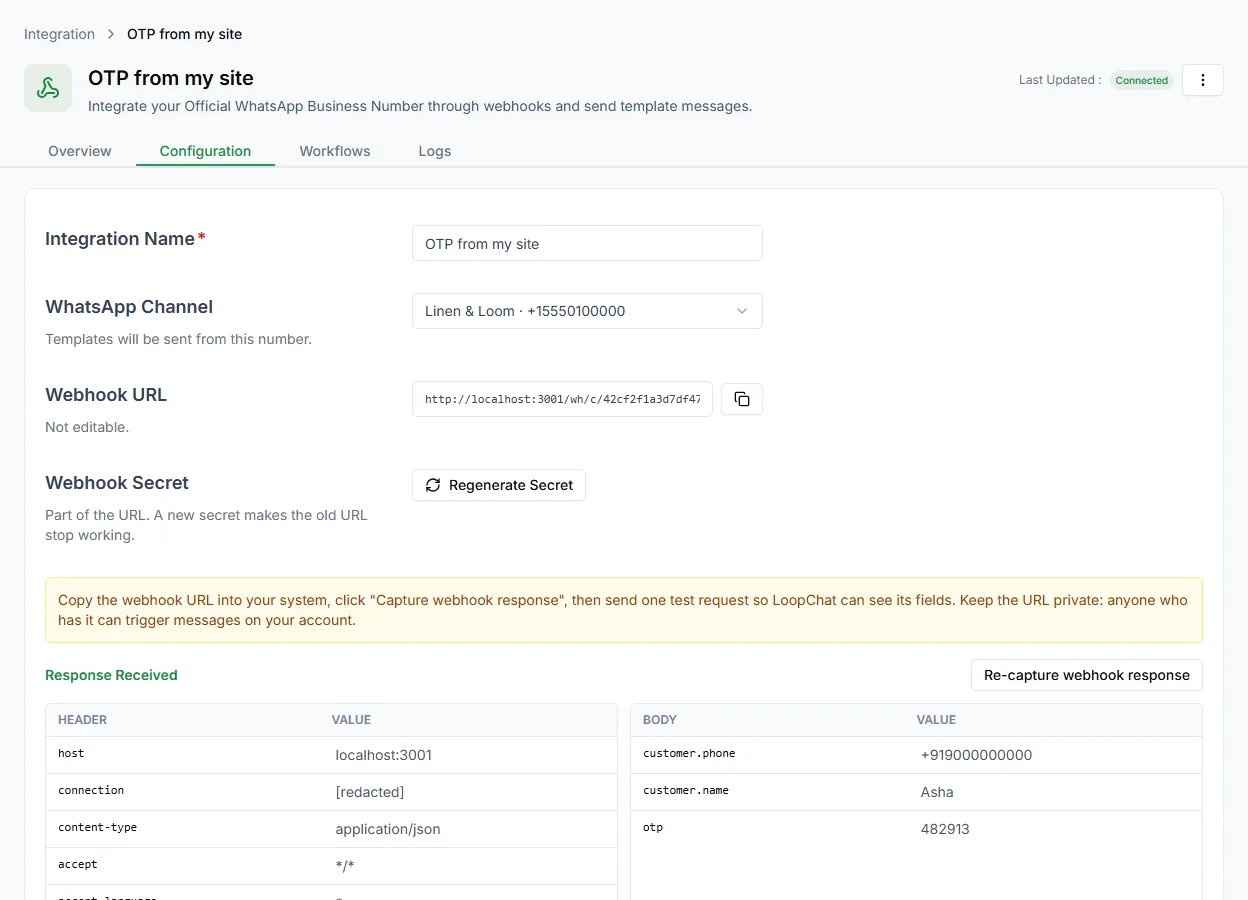
Check the WhatsApp Channel, click Save channel & configuration, then paste the webhook URL into the webhook settings of the system you’re connecting.
Step 3: Capture a sample request
Section titled “Step 3: Capture a sample request”Click Capture webhook response. It changes to Waiting for response while LoopChat listens.
Now make your system send a real request: submit the form, create a test lead or place a test order. When it arrives, LoopChat shows Response Received with the request’s headers and body.
What LoopChat accepts: JSON, form data or plain text, with or without a Content-Type header, by GET or POST. Values in the address (query parameters) are merged over the body, and request headers can be used too. Requests can be up to 64 KB.
Step 4: Add a workflow
Section titled “Step 4: Add a workflow”A workflow says who to message and what to send. Open the Workflows tab and click Create New WorkFlow:
| Field | Notes |
|---|---|
| Workflow Name | A name for your reference |
| Recipient Name | Where the customer’s name is in the request, for example {{body.name}} |
| Recipient Number | Where their phone number is, for example {{body.phone}} |
Numbers without a country code are treated as Indian (+91).
Conditions
Section titled “Conditions”Add Matching Conditions if the workflow should only run for some requests, for example only when {{body.status}} equals paid. Choose whether ALL or ANY of the conditions must match.
Actions
Section titled “Actions”- Select Template: the approved template to send. Fill its variables from the request, for example
{{body.otp}}. Only approved templates on this number can be used. - Contact actions: update the contact’s name, email, phone or tags, remove tags, change their marketing opt-in, or set the contact owner.
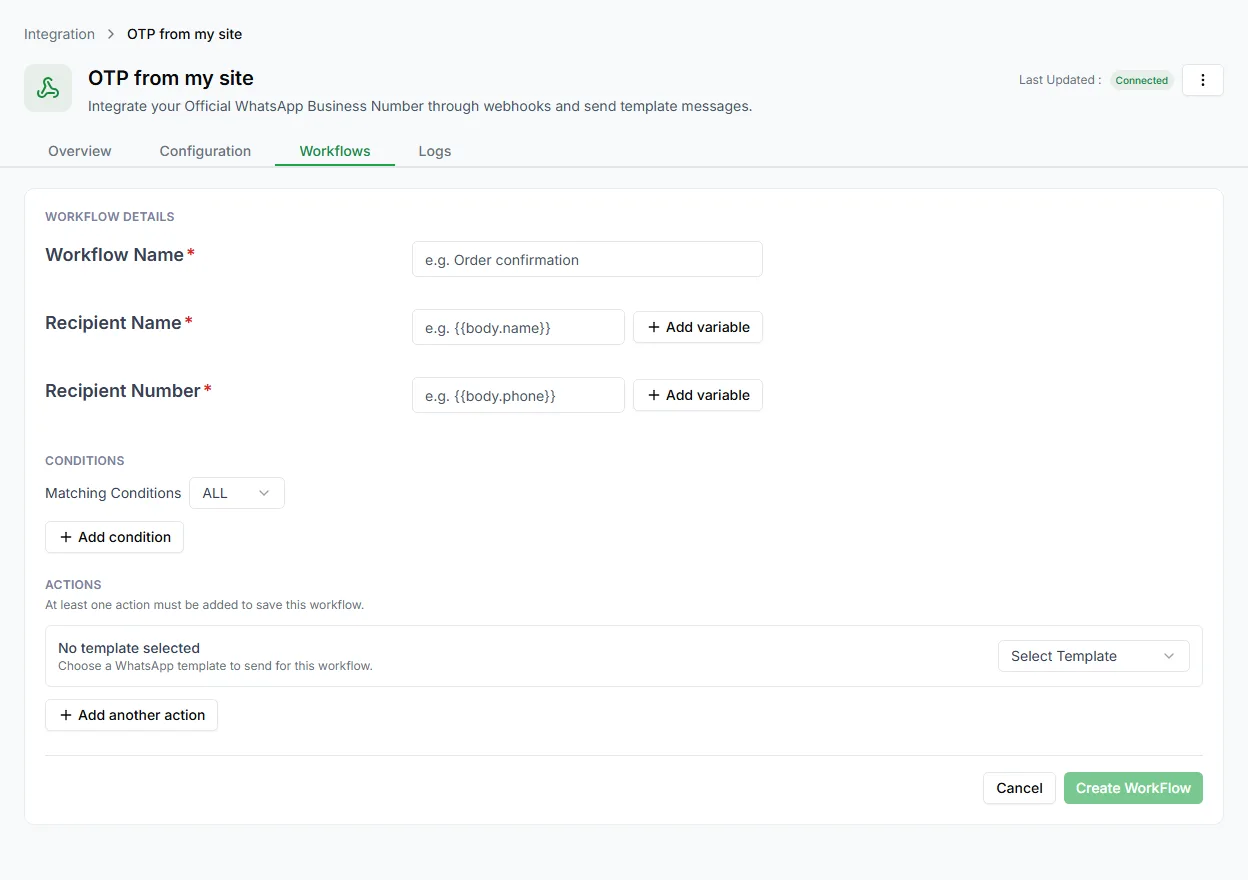
Use Add another action for more actions, then click Create WorkFlow. A webhook can have up to 5 workflows, each sending one template. That lets one webhook send different messages for different events.
What happens when a request arrives
Section titled “What happens when a request arrives”- Your system sends a request to the webhook URL.
- LoopChat replies
200straight away, so your system never waits for WhatsApp. - Each workflow whose conditions match runs: it finds the recipient, sends the template and makes any contact changes.
- The result is added to the Logs tab.
Built-in protection
Section titled “Built-in protection”| Protection | What happens |
|---|---|
| Duplicate requests | The same request received twice within 60 seconds only sends once |
| Rate limit | Up to 60 requests a minute per webhook (and 600 a minute per workspace). More gets 429 Too many requests. |
| Size limit | Requests over 64 KB get 413 |
| Unknown address | Gets 404 |
Duplicate protection matters: many systems retry a webhook they think failed, and without it the customer would get the message twice.
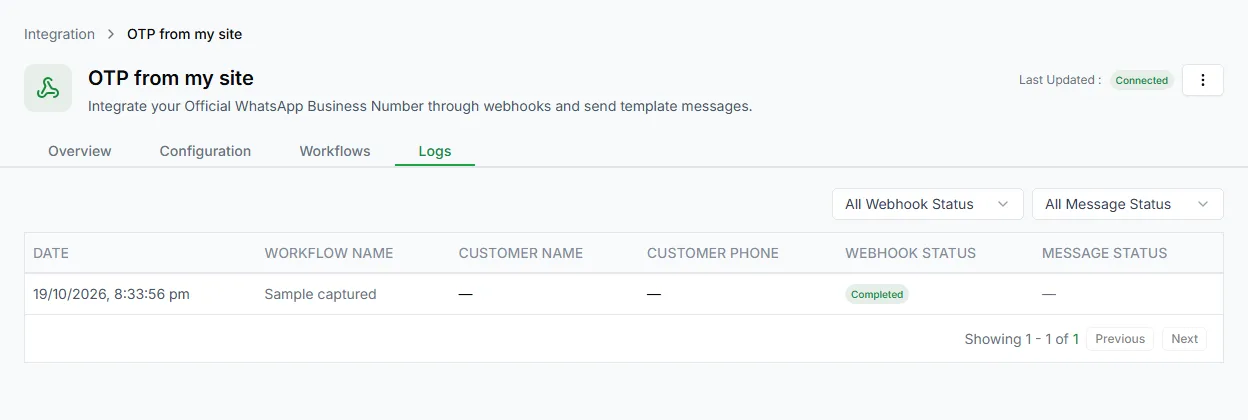
The Logs tab has a row for every request, with Date, Workflow Name, Customer Name, Customer Phone, Webhook Status and Message Status. Filter by webhook status or message status to find problems.
Example: send a login code
Section titled “Example: send a login code”Your login system needs to send a one-time code over WhatsApp.
- Create a webhook called Login code and copy its URL.
- Make your login service send:
{ "customer": { "phone": "+919000000000", "name": "Asha" }, "otp": "482913"}- Click Capture webhook response, then trigger one real login.
- Add a workflow: Recipient Number
{{body.customer.phone}}, Recipient Name{{body.customer.name}}. - Choose your approved login-code template and set its variable to
{{body.otp}}.
Every login now sends the code over WhatsApp, and duplicate protection stops a double click from sending two.
Developer API and webhooks
Section titled “Developer API and webhooks”To send templates from your own code with an API key, use the Developer API. To get LoopChat events sent to your server, use Webhooks.