

Team and roles
Invite a teammate
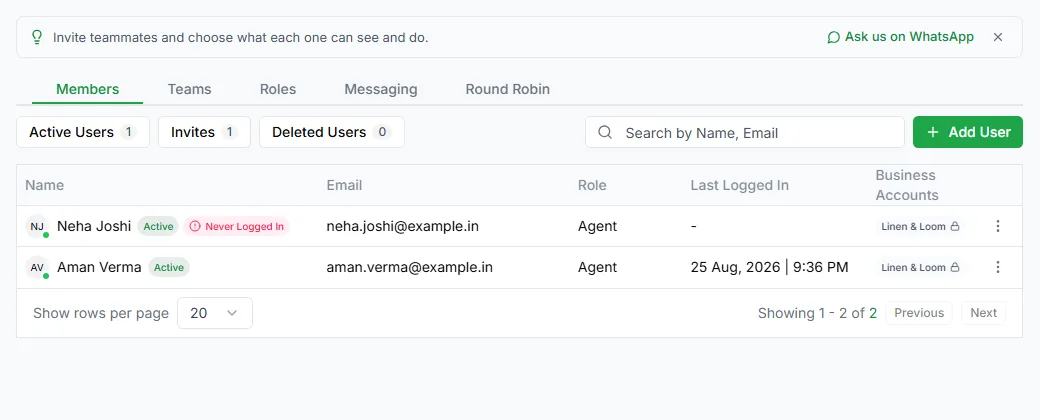
Section titled “Invite a teammate”- Open Settings → Team.
- Click Add User. The Add User form opens.
- Fill in Email, Name, Role and Password.
- Under Business Accounts Access, choose which WhatsApp numbers they can use. For agents, you can also give access to All Conversations on a number, not just the chats assigned to them.
- Click Submit.
Your teammate gets an email and can sign in straight away.
| Role | What they can do |
|---|---|
| Owner | Everything, including the plan, billing and team. The person who created the workspace. |
| Admin | Everything an owner can do: plan and billing, team members, Developer Hub and all settings. Admins can use every WhatsApp number. |
| Manager | Day-to-day running: workspace settings, chat routing, customer ratings and exporting contacts, but not billing or the team. |
| Agent | Chats and contacts on the numbers they’ve been given access to. |
Only admins can give someone the Manager or Admin role.
The Team page also shows how many users are active, how many invites are waiting, and who has been removed.
Audit log
Section titled “Audit log”The audit log records who did what in your workspace, such as changing settings, creating API keys or editing webhooks. Open Settings → Audit Log. Only admins can see it.
Use it to answer questions like who switched off this bot? or when was this API key created?
Need help? Email hello@loopchat.inBook a demo · Open LoopChat