

Send products
Three steps in the Send a message group show products from the Meta catalogue connected to your number:
- Single Product: one product
- Multi Product: several products in one message
- Send Collection: every product in one of your catalogue collections
Connect a catalogue first: see Connect your catalogue to LoopChat.
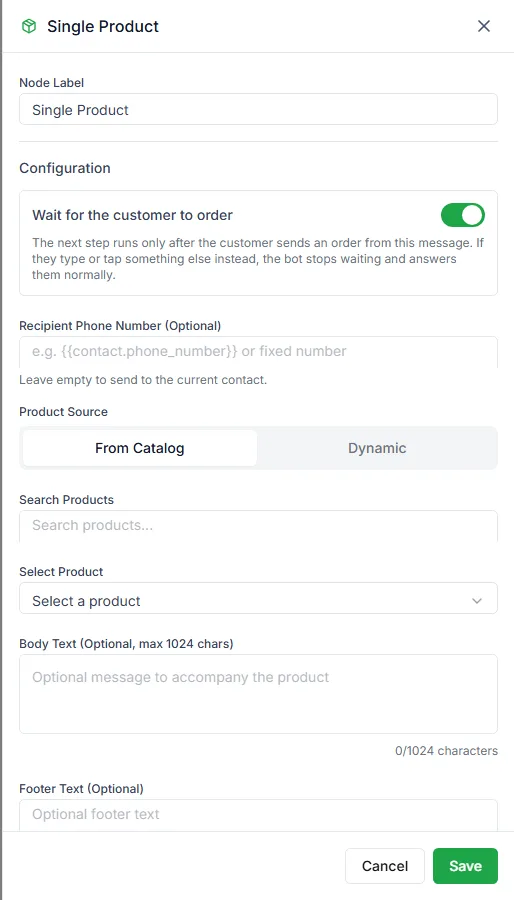
Choose what to show
Section titled “Choose what to show”Single Product has a Product Source setting:
- From Catalog: pick the product yourself. Everyone who reaches this step sees it.
- Dynamic: pick the product when the bot runs, using a Search Query (for example the customer’s answer,
{{user_input_1}}) or an exact Product Retailer ID.
Multi Product offers four sources:
| Source | Use it for |
|---|---|
| Pick from catalogue | A fixed set of featured products |
| From flow variable | Products found with a Search Query, or exact Product Retailer IDs such as SKU001, SKU002 |
| Collection | One of your catalogue collections |
| Catalogue message | A button that opens your whole catalogue |
The dynamic options turn a bot into a product search: ask what the customer is looking for, search with their answer, and show what matches.
Message text
Section titled “Message text”Add Body Text to go with the products, such as features, prices or an offer. Multi Product also has Header Text (up to 60 characters), and both have optional Footer Text.
Wait for the order
Section titled “Wait for the order”Turn on Wait for the customer to order and the step gets two outputs:
- Order received: the customer ordered from this message.
- No order within the time you set: follow up, or offer help.
Orders placed from product messages also start any bot whose type is Order based.
Need help? Email hello@loopchat.inBook a demo · Open LoopChat