

Condition
The Condition step checks one or more rules and sends the chat down one of two paths. It’s what turns a fixed script into a bot that reacts to the person it’s talking to.
Find it in the Logic & Flow Control group of the palette.
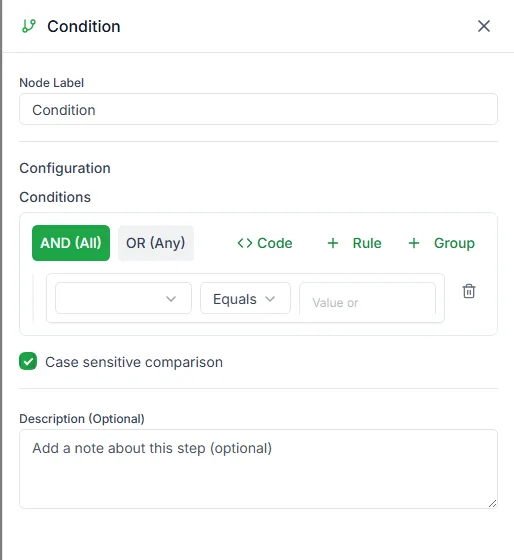
Set up a rule
Section titled “Set up a rule”Each rule has three parts:
- Field: what to check, such as a contact field or a variable saved earlier (choose it in Select field)
- Operator: how to compare, such as equals, contains, greater than, or older than a number of days
- Value: what to compare it with
Match all rules or any rule
Section titled “Match all rules or any rule”When you add more than one rule, choose how they combine:
- AND (All): every rule must be true
- OR (Any): one true rule is enough
That covers most real rules, for example is a VIP and has an open order, or replied yes or replied confirm. For more complex rules, Expression Mode lets you write the whole check as one expression.
Capital letters
Section titled “Capital letters”Case sensitive comparison is on by default, so Yes and yes count as different. Turn it off when you’re checking something a customer typed.
The two outputs
Section titled “The two outputs”- Yes: the rules were met
- No: they weren’t
Condition or Switch?
Section titled “Condition or Switch?”Condition gives you two paths. When one value can lead to more than two outcomes, use Switch: it checks one field and gives you a path for each value, plus a Default. See More flow steps.