

Work faster in the inbox
The inbox is built so a team can share one queue without stepping on each other. Views, filters and search narrow hundreds of chats down to the few that are yours right now.
Use the views
Section titled “Use the views”The Inbox column on the left is the quickest filter:
- New: chats nobody has picked up. Start your shift here.
- Open: chats in progress, with a person or a bot.
- Resolved: closed chats. They keep their history and can be reopened.
- Spam: chats marked as spam.
Marketing and Started by show where a chat came from: a broadcast, a journey, the API, an ad, a bot or Shopify.
Filter chats
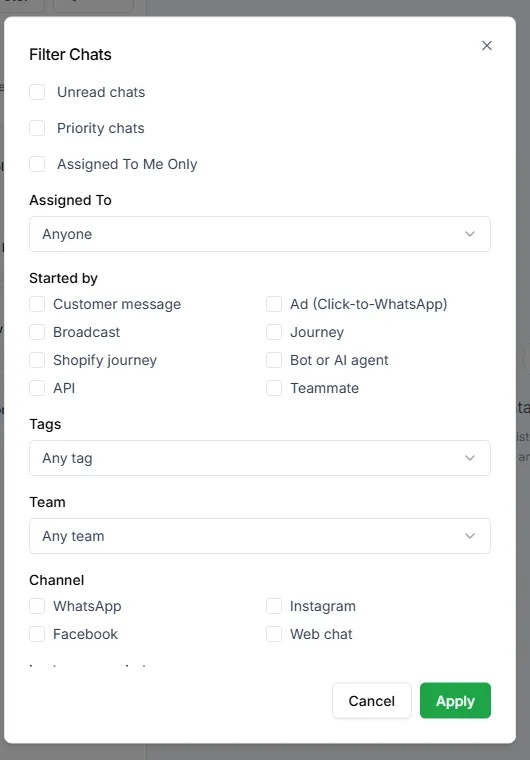
Section titled “Filter chats”Click Filter above the chat list to open Filter Chats. You can combine:
- Unread chats, Priority chats and Assigned To Me Only
- Assigned To: one or more teammates
- Started by: for example a bot or AI agent
- Tags
- Response time
- Team and Channel
- Last message between two dates
- Contact field: any contact detail, including your own fields
Search
Section titled “Search”The search box finds chats by name, phone, email and more, including partial matches.
Keyboard shortcuts
Section titled “Keyboard shortcuts”- J and K move to the next and previous chat.
- Enter opens the selected chat.
- In the message box, Enter sends and Shift + Enter adds a new line.
- Type / in the message box to open your canned responses.
Keep the details panel open
Section titled “Keep the details panel open”The panel on the right shows the contact’s details beside the chat: their fields, marketing opt-in and lead stage. Leaving it open means you rarely have to leave the inbox to answer a question about who you’re talking to. Click Hide details when you need the full width.
Watch the 24-hour window
Section titled “Watch the 24-hour window”Each chat shows how much of WhatsApp’s 24-hour reply window is left. Answering the chats closest to closing first is often the difference between a free reply and having to send a template.