

Connect your catalogue to LoopChat
Once your catalogue is linked to your WhatsApp Business Account in Meta, connect it to LoopChat.
- In the left sidebar, open Grow → Commerce → Catalogues.
- Click Connect catalog. The Connect Catalog window opens.
- If LoopChat doesn’t have permission to see your catalogues yet, a Facebook sign-in window opens. Sign in, choose your business, and allow LoopChat to manage your catalogues.
- Pick your catalogue from the list, or paste its Meta Catalog ID.
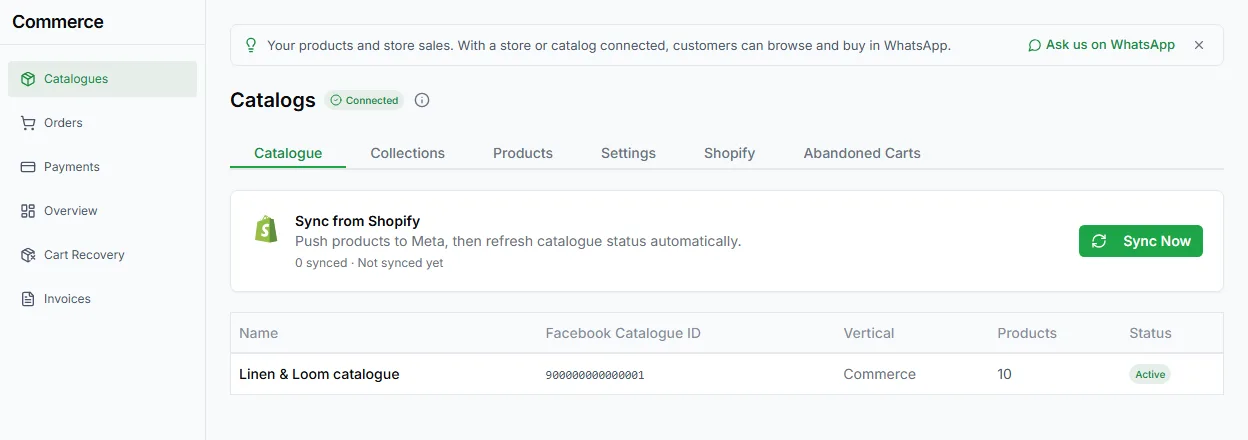
Your catalogue is now connected. The Catalogue tab shows its name, Facebook catalogue ID, type, number of products and status.
Working with the catalogue
Section titled “Working with the catalogue”- Sync From Meta brings LoopChat up to date with your catalogue. Run it after you add or change products in Meta.
- Search finds a product in a big catalogue.
- Re-link to WhatsApp fixes the link between the catalogue and your number if it breaks.
- Disconnect Catalog, under Settings → Catalog Connection on the same page, removes the catalogue from LoopChat.
Using products in chats
Section titled “Using products in chats”With the catalogue connected:
- Bots send products with the Send products steps.
- Orders placed in chat can start an Order based bot, which can confirm the order and ask for a delivery address.
- Orders show under Commerce → Orders.
- Unfinished checkouts show under Commerce → Cart Recovery.
Need help? Email hello@loopchat.inBook a demo · Open LoopChat