

Canned responses
Canned responses (called quick replies in the inbox) are saved messages your team can insert into a chat without typing. They keep answers consistent and cut the time it takes to reply to common questions.
Use a canned response
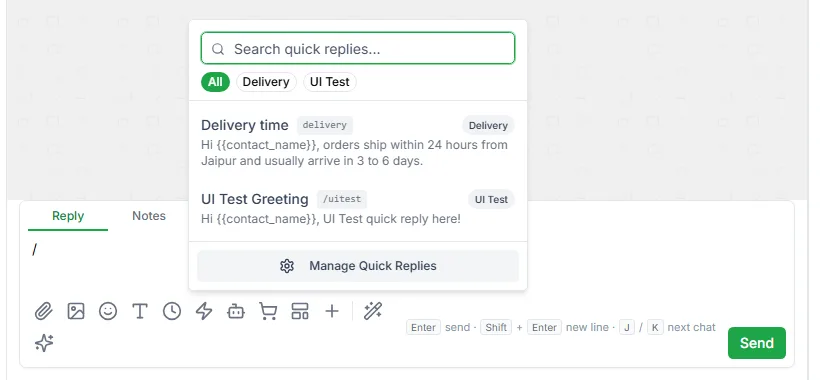
Section titled “Use a canned response”- Open a chat in Chat.
- Click the Quick replies icon in the message box, or type /.
- Search by name or text, or tap a category to filter.
- Click the reply you want.
The message is placed in the message box, so you can change it before you send.
Variables
Section titled “Variables”A canned response can include placeholders that LoopChat fills in from the contact as you insert it:
| Placeholder | Replaced with |
|---|---|
{{contact_name}} |
The contact’s name, or there if no name is saved |
{{phone_number}} |
The contact’s phone number |
So a saved reply like:
Hi
{{contact_name}}, thanks for getting in touch. Could you confirm your order number?
arrives in the message box already addressed to the person you’re talking to.
Create and edit canned responses
Section titled “Create and edit canned responses”You can manage them in two places:
- In the inbox: open the quick replies list and click Manage Quick Replies. The Canned Responses panel opens beside the chat.
- In Settings → Canned Responses.
Click Add New Canned Response and fill in:
| Field | Notes |
|---|---|
| Name | Required. A short title your team will search for |
| Content | Required. The message itself, with any placeholders |
| Category | Optional. Groups replies so they’re easy to filter |
| Shortcut | Optional. A short word to find the reply quickly |
Each saved reply has Edit and Delete.
Categories
Section titled “Categories”Every category you use appears as a filter above the list. Categories are what keep a long list usable in the middle of a conversation, so group replies by topic, such as Delivery, Returns or Payments.