

Sending limits and quality rating
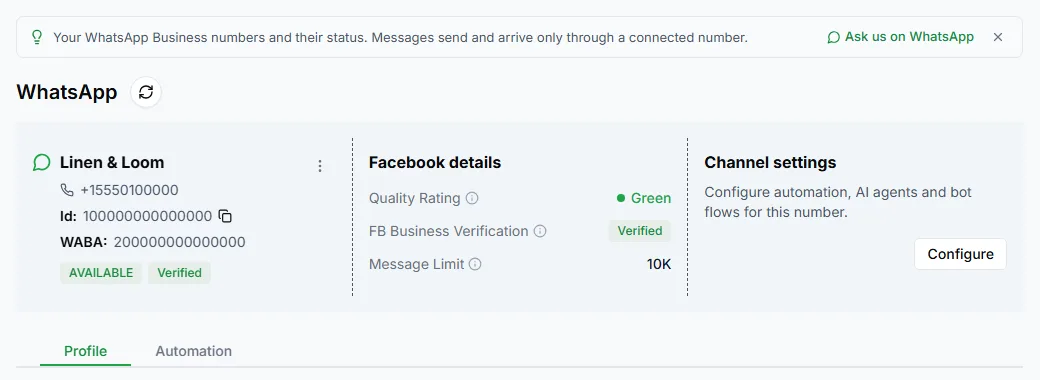
WhatsApp limits how many different customers a number can start conversations with in a day. You can see your number’s limit and quality rating in Settings → WhatsApp Channel, in the Facebook details section of the number’s card.
Message Limit
Section titled “Message Limit”Message Limit is the number of different customers you can send template messages to in a rolling 24 hours. Replies to customers who messaged you first don’t count towards it.
New numbers start with a low limit. Meta raises it automatically as you send good-quality messages, and business verification raises it further. See Meta business verification.
If a broadcast is bigger than your remaining limit, LoopChat skips the extra contacts and shows them in the report as Skipped — daily limit.
Quality Rating
Section titled “Quality Rating”Quality Rating reflects how customers have reacted to your messages recently:
| Rating | Meaning |
|---|---|
| Green | High quality. Keep doing what you’re doing. |
| Yellow | Medium. Some customers are blocking or reporting you. |
| Red | Low. Your limit may be lowered if it stays red. |
The rating drops when customers block your number, report it, or ignore lots of messages.
Keep your rating high
Section titled “Keep your rating high”- Only send marketing to customers who’ve agreed to it. LoopChat skips opted-out contacts for you. See Opt-outs.
- Keep the Reply STOP to unsubscribe line on marketing templates.
- Send messages people expect and find useful, at sensible times.
- Don’t send the same offer again and again.
- Use the right template category. See Choose a template.