

Wait
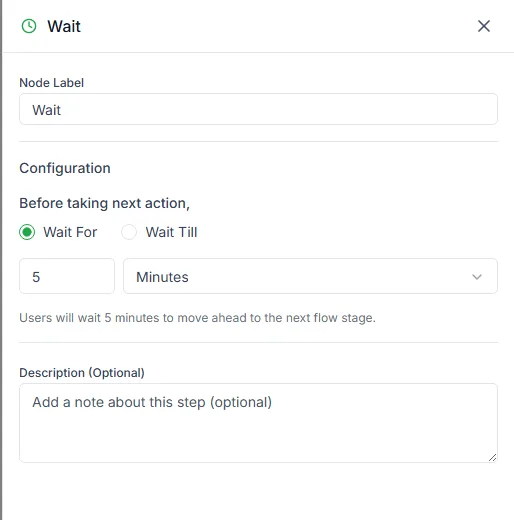
The Wait step pauses the bot before the next step. Use it to space out messages so they don’t arrive all at once, or to follow up later.
Find it in the Logic & Flow Control group of the palette.
Wait For
Section titled “Wait For”Pause for a set amount of time. Enter a number and pick Minutes, Hours, Days or Weeks.
Example: wait 2 hours, then send a reminder.
Wait Till
Section titled “Wait Till”Pause until a particular moment. Choose:
- Day: Specific Date, Any Day, Next Month, Weekday, Weekend, or a day of the week (Monday to Sunday)
- Date, when you chose Specific Date
- At the time: the time of day, for example 9:00 AM
You can also use a date and time saved earlier in the bot under Or use a saved date and time, written as a variable such as {{appointment_time}}.
Example: wait till the next weekday at 10:00 AM, then send the follow-up.
Waiting for something the customer does
Section titled “Waiting for something the customer does”To wait for an event rather than a time, use the separate Wait for Event step. It has an On Event output and an On Timeout output for when nothing happens in time.
Need help? Email hello@loopchat.inBook a demo · Open LoopChat