

Send message
The Send Message step sends a text message to the customer. It’s the step you’ll use most: greetings, answers, confirmations, anything that doesn’t need a template.
Find it in the Send a message group of the palette.
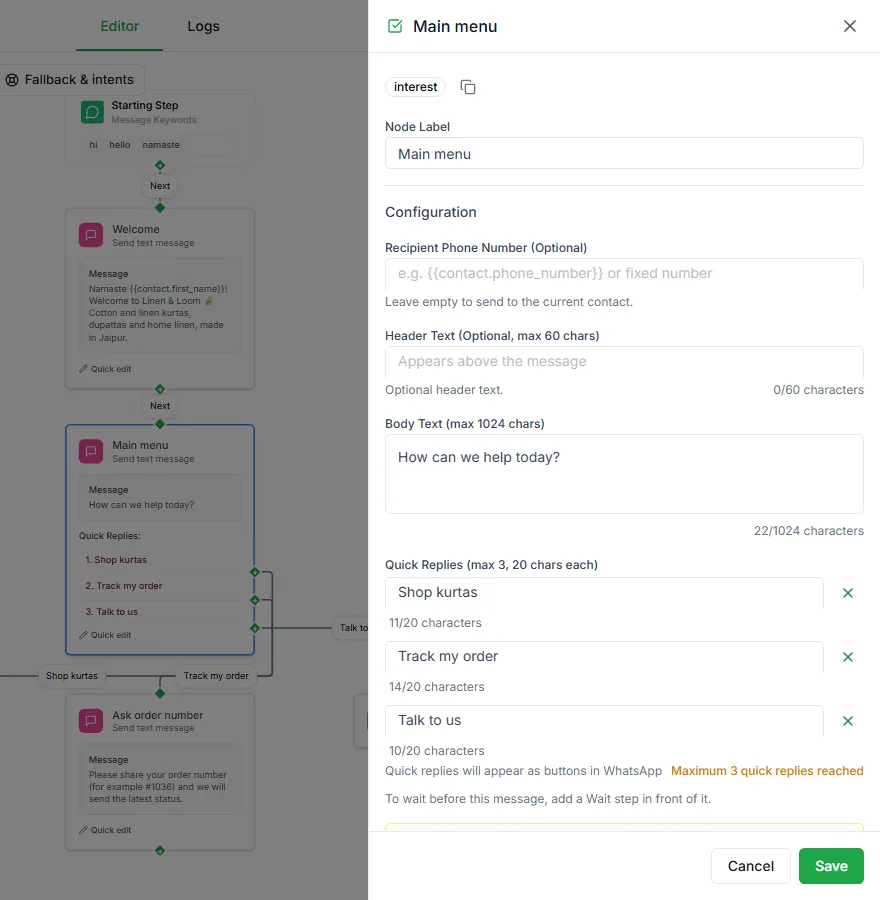
Settings
Section titled “Settings”| Setting | Notes |
|---|---|
| Recipient Phone Number | Optional. Leave it empty to reply to the customer the bot is talking to. |
| Header Text | Optional, up to 60 characters. Shown above the message. |
| Body Text | The message itself, up to 1,024 characters. |
| Quick Replies | Optional, up to 3 buttons of up to 20 characters each. |
Add variables
Section titled “Add variables”Personalise the message with details saved earlier in the bot or stored on the contact. In the header, body and quick-reply fields, type {{ to pick a variable.
Hi
{{contact.name}}, your order{{order_id}}is on its way.
Quick replies
Section titled “Quick replies”Add up to three quick-reply buttons so the customer can tap instead of typing. Each button gets its own output on the step, so every answer can lead somewhere different. Keep labels short: WhatsApp cuts anything over 20 characters.
Delivery branches
Section titled “Delivery branches”You can also turn on extra outputs that follow what happens to the message: On Delivery, On Read, On Failure, or Not delivered within a time you choose. A No reply output catches customers who don’t answer.
Send to someone else
Section titled “Send to someone else”Normally you leave Recipient Phone Number empty. Fill it in to notify someone else, such as your own team’s number or a number saved in a variable earlier in the bot.