

Broadcast
A broadcast sends one WhatsApp template to many contacts. Because it’s a template, it reaches people whether or not they’ve messaged you recently. That makes it the tool for announcements, offers and reminders.
Open Grow → Broadcast in the left sidebar.
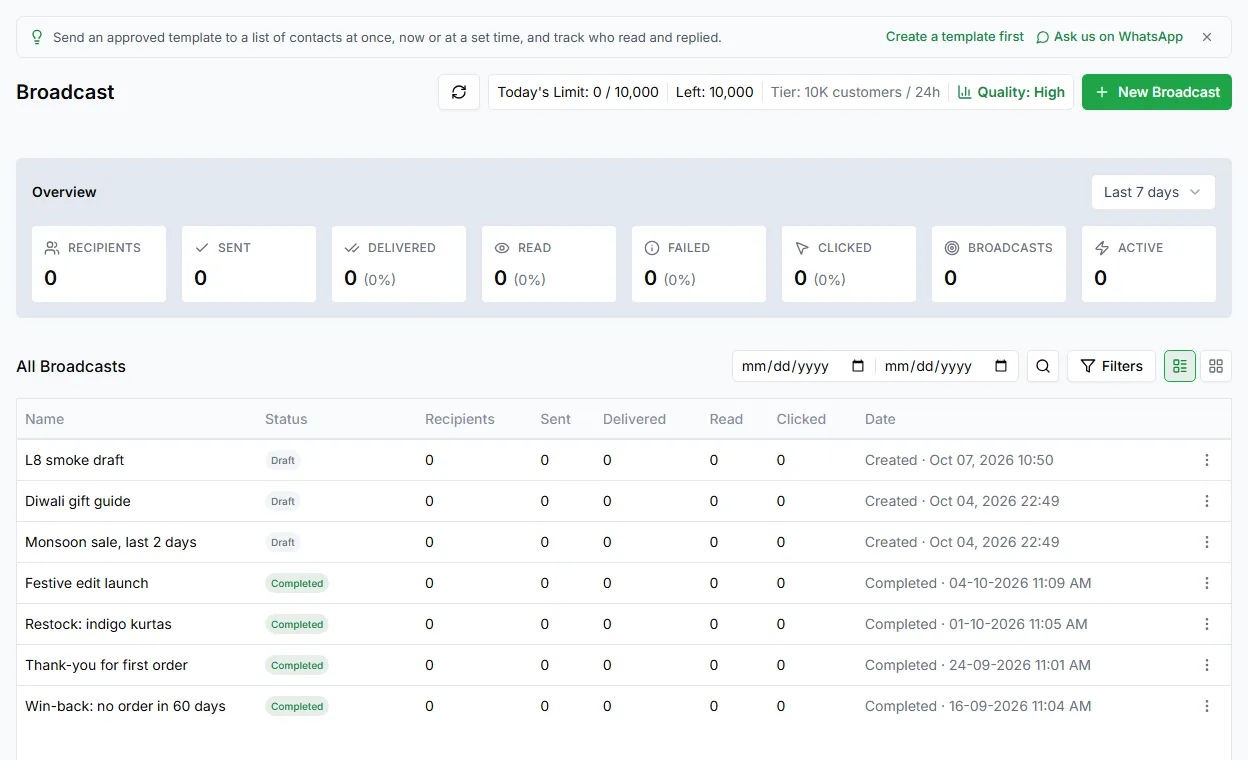
The Broadcast page
Section titled “The Broadcast page”The page lists every broadcast you’ve created, with its status and results. From here you can:
- See which broadcasts are scheduled, sending, finished or drafts
- Open any broadcast for its full report
- Switch between grid and list views
- Search by name
Create a broadcast
Section titled “Create a broadcast”Click New Broadcast (or Create broadcast if you haven’t made one yet). There are three steps:
- Select Template: what to send
- Select Audience: who gets it
- Schedule Broadcast: when it goes out
Use Next and Back to move between steps.
Before your first broadcast
Section titled “Before your first broadcast”Make sure you have:
- A connected WhatsApp number. See Connect WhatsApp.
- An approved template, or time for Meta to approve one you create in the first step.
- Contacts to send to. See Add contacts.
- A payment method in Meta for WhatsApp’s message charges. See Add a payment method in Meta.
Need help? Email hello@loopchat.inBook a demo · Open LoopChat