

Bot management
Work with steps on the canvas
Section titled “Work with steps on the canvas”Hover over a step and a small toolbar appears above it.
| Control | What it does |
|---|---|
| Duplicate Node | Copies the step with all its settings. Handy when a second branch is almost the same as the first. |
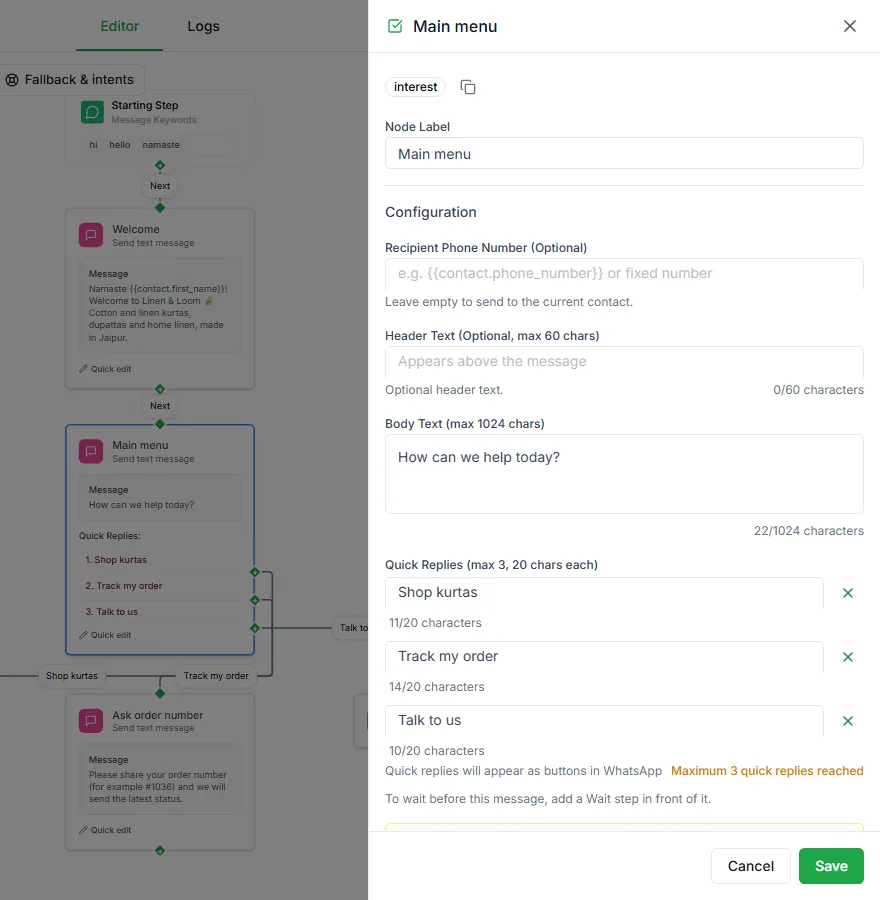
| Edit Node (pencil) | Opens the step’s settings. Double-clicking the step does the same. |
| Preview | Shows how the message will look (on steps that send one). |
| + | Adds the next step straight after this one. |
| Delete Node (bin) | Removes the step from the bot. |
Saving and publishing
Section titled “Saving and publishing”- Save Draft saves a bot that isn’t live yet.
- Publish Now puts a draft bot live.
- On a bot that’s already live, saving puts your changes live straight away. To make big changes safely, Pause the bot, edit, then Resume.
Logs and runs
Section titled “Logs and runs”The Logs tab in the editor lists each run with its contact, start time and status: Running, Completed, Failed, Waiting for Response, Waiting for Sub-flow, Pending or Manually Paused. The Executions button on the canvas opens the same history.
Things worth watching:
- Many runs stuck at one step usually means that question isn’t clear.
- Lots of Waiting for Response runs mean customers stopped replying mid-way. A No reply branch can follow up with them.
- Failed runs often point to an HTTP Request or an integration step that didn’t work.
Manage bots
Section titled “Manage bots”Each bot on the Automate → Bots page has an on/off switch and a ⋮ menu with:
- Edit
- Rename
- Show QR Code: a QR code customers can scan to start the bot
- Duplicate: creates a copy called “name (Copy)”
- Pause or Go live
- Delete
Use the filter to show Live, Paused, Draft or Archived bots.
Need help? Email hello@loopchat.inBook a demo · Open LoopChat