

Send buttons and lists
When you want the customer to pick from a few options, tapping beats typing. Two steps in the Send a message group do this.
Send Buttons
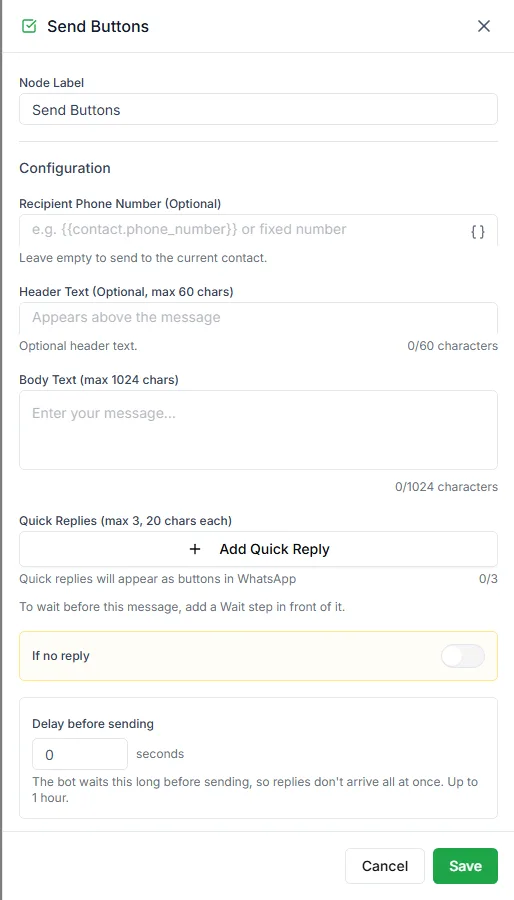
Section titled “Send Buttons”Send Buttons sends a message with up to three reply buttons and waits for the customer to tap one. Each button gets its own output on the step, so each choice leads somewhere different.
| Setting | Notes |
|---|---|
| Header Text | Optional, up to 60 characters |
| Body Text | The question, up to 1,024 characters |
| Quick Replies | The buttons: up to 3, up to 20 characters each |
Send List
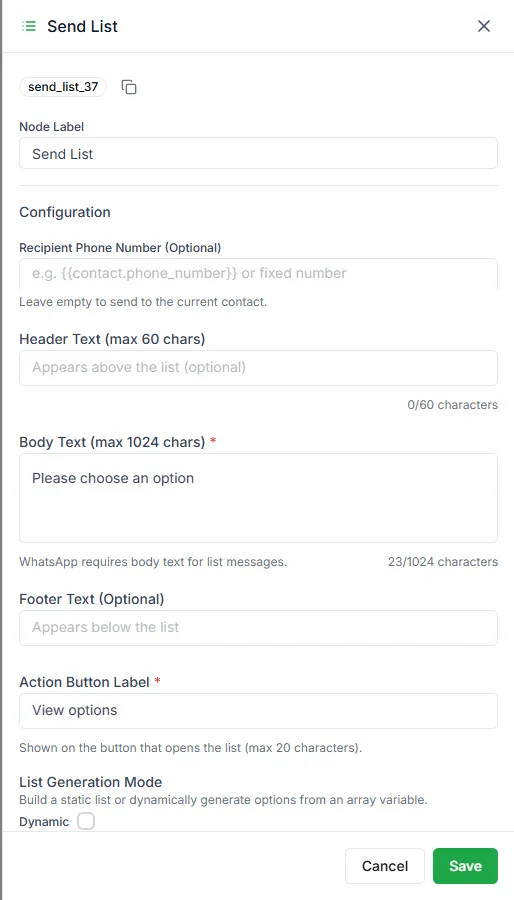
Section titled “Send List”Send List sends a message with a menu button. The customer opens the menu and picks one row. Use it when you have more than three options, such as product categories or appointment times.
| Setting | Notes |
|---|---|
| Header Text | Optional, up to 60 characters |
| Body Text | Required by WhatsApp for list messages, up to 1,024 characters |
| Footer Text | Optional |
| Action Button Label | The text on the button that opens the list, for example View options (up to 20 characters) |
| Options | The choices in the list, each with a title and an optional description |
Each option gets its own output.
Dynamic lists
Section titled “Dynamic lists”Under List Generation Mode, turn on Dynamic to build the options from a list saved in a variable, for example the results of an HTTP Request step. Choose the Array Variable, then map which part of each item becomes the Option Title, Description and Value/ID. Long lists are split into pages with a “Next Page” Button Label.
When nobody taps
Section titled “When nobody taps”Both steps can have a No reply output. Use it to ask again, or to hand the chat to your team with Request intervention.