

Developer API
The LoopChat Developer API lets your own systems send approved WhatsApp templates and push orders into LoopChat. You manage keys, webhooks and examples in the Developer Hub inside the app.
Open the Developer Hub
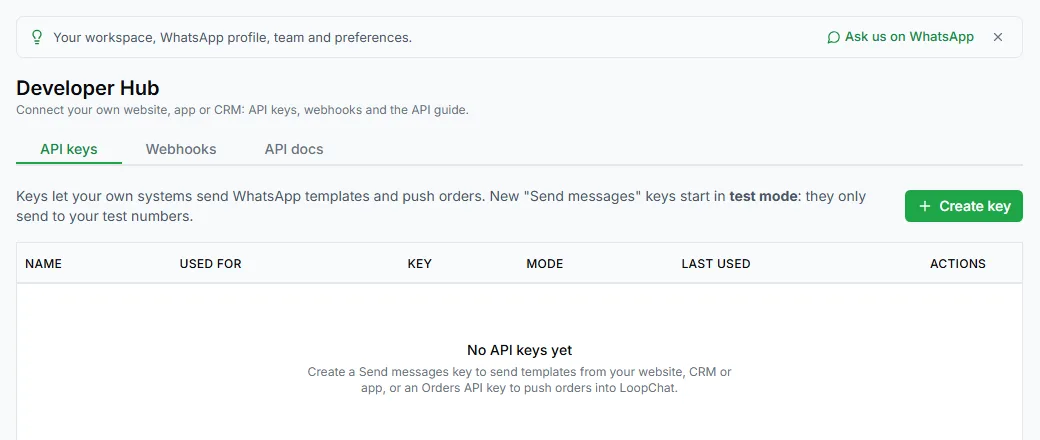
Section titled “Open the Developer Hub”Go to Settings → Developer Hub (open it in LoopChat). Only owners and admins can see it. It has three tabs:
- API keys: create and switch off keys
- Webhooks: get LoopChat events sent to your server. See Webhooks.
- API docs: copy-and-paste examples
Keys and webhooks belong to one WhatsApp number. If you have several numbers, choose the right one first.
Create an API key
Section titled “Create an API key”- On the API keys tab, create a key.
- Choose what it’s for: Send messages (templates) or Orders API (push orders).
- Give it a name.
- For a send-messages key, choose the mode:
- Test: only my test numbers: the key can only send to the test numbers saved in the bot builder’s Test panel.
- Live: any customer.
- Copy the key. It’s only shown once.
New keys start in test mode. When you’re ready, click Make live. To stop a key working, click Switch off.
Send a template
Section titled “Send a template”POST https://app.loopchat.in/api/v1/developer/messages/templateSend your key in the x-loopchat-key header.
curl -X POST https://app.loopchat.in/api/v1/developer/messages/template \ -H "x-loopchat-key: YOUR_API_KEY" \ -H "Content-Type: application/json" \ -H "Idempotency-Key: order-1001-confirmation" \ -d '{ "to": "+919000000000", "template_name": "order_confirmation", "language": "en", "variables": { "1": "Asha", "2": "#1001" } }'Request body
Section titled “Request body”| Field | Required | Notes |
|---|---|---|
to |
Yes | The customer’s number with country code, for example +919000000000 |
template_name |
Yes | The approved template’s name: lowercase letters, numbers and underscores |
language |
Only if the template has more than one language | For example en or en_US |
variables |
No | Values for the template’s placeholders, by number ("1") or name. Up to 30, each up to 1,024 characters. |
components |
No | Meta’s template components format, for advanced cases |
name |
No | The contact’s name, up to 120 characters |
The body can be up to 64 KB.
Success
Section titled “Success”{ "success": true, "message_id": "wamid.HBgM...", "to": "+919000000000", "template": "order_confirmation", "language": "en", "mode": "live"}The message also appears in the customer’s chat in LoopChat, marked as sent by the Developer API.
Errors
Section titled “Errors”Errors look like {"success": false, "error": "code", "message": "..."}, sometimes with a field.
| Status | error |
What it means |
|---|---|---|
| 400 | invalid_request |
Something in the body is wrong. field says which. |
| 401 | missing_key, invalid_key |
No key, a wrong key, or a switched-off key |
| 403 | test_mode_number |
A test key tried to send to a number that isn’t a test number |
| 403 | account_suspended |
The workspace is suspended |
| 403 | (plan) | Your plan doesn’t include the Developer API |
| 404 | template_not_approved |
No approved template with that name |
| 409 | opted_out, no_consent |
A marketing template to a customer who opted out or didn’t consent |
| 409 | send_in_progress |
A send with the same Idempotency-Key is still running |
| 402 | send_blocked, plan_limit |
Sending is blocked, or you’ve reached your plan’s limit |
| 502 | whatsapp_refused |
WhatsApp refused the message. The message explains why. |
| 413 | — | The body is over 64 KB |
| 429 | — | Too many requests |
| 500 | not_sent |
Something went wrong. Nothing was sent; try again. |
Limits and retries
Section titled “Limits and retries”- Each key can make up to 60 requests a minute.
- Add an
Idempotency-Keyheader (1 to 255 characters, no spaces; a UUID works well) so a retry never sends twice. For 24 hours, a repeat with the same key gets the first answer back, with the headeridempotent-replayed: true, and nothing is sent again. If the first send failed, you can retry with the same key.
Push orders
Section titled “Push orders”An Orders API key lets you send orders from any store or system into LoopChat. Each order then triggers the same automations as a Shopify order, such as auto messages and journeys.
POST https://app.loopchat.in/api/v1/orders-api/orderscurl -X POST https://app.loopchat.in/api/v1/orders-api/orders \ -H "x-loopchat-key: YOUR_ORDERS_KEY" \ -H "Content-Type: application/json" \ -d '{ "id": "1001", "status": "confirmed", "total": 1499, "currency": "INR", "customer": { "phone": "+919000000000", "name": "Asha" }, "items": [{ "name": "Linen cushion cover", "quantity": 2, "price": 749.5 }] }'| Field | Required | Notes |
|---|---|---|
id |
Yes | Your order ID |
status |
Yes | pending, confirmed, paid, shipped, out_for_delivery, delivered, cancelled or refunded |
total |
Yes | The order total |
customer.phone |
Yes | With country code |
order_number, currency, customer.name, customer.email, items, payment_method, shipping_address, billing_address, tracking, order_url, created_at |
No | Extra details. currency defaults to INR; payment_method can be cod; order_url must use https. |
Send the order again whenever its status changes. Sending the same details twice changes nothing. Each key can make up to 120 requests a minute.
The answer says whether the order was created, updated or unchanged, and which events it triggered.
Need more?
Section titled “Need more?”The API docs tab in the Developer Hub has ready-made examples for your workspace. For anything else, email hello@loopchat.in.