

Connect WhatsApp and Google Sheets
Save customer answers to a spreadsheet as they come in. A bot collects the details, an HTTP Request step sends them to a Google Apps Script, and the script adds a row.
This only uses the HTTP Request step, so the same idea works for any service that accepts a webhook. Google Sheets is just a handy example.
Step 1: Create the sheet
Section titled “Step 1: Create the sheet”- Create a new Google Sheet.
- Add column headings:
Name | Phone | Email | Message | DateStep 2: Create the Apps Script
Section titled “Step 2: Create the Apps Script”- Click Extensions → Apps Script.
- Delete the code that’s there.
- Paste this:
function doPost(e) {  var sheet = SpreadsheetApp.getActiveSpreadsheet().getActiveSheet();  var data = JSON.parse(e.postData.contents);
  sheet.appendRow([    data.name,    data.phone,    data.email,    data.message,    new Date()  ]);
  return ContentService    .createTextOutput(JSON.stringify({status: "success"}))    .setMimeType(ContentService.MimeType.JSON);}
Change the list inside sheet.appendRow([ ]) to match your own columns.
- Click Deploy → New deployment.
- Choose Web app.
- Under Who has access, choose Anyone.
- Click Deploy and copy the Web app URL.
Step 3: Set up the HTTP Request step
Section titled “Step 3: Set up the HTTP Request step”In your bot, add an HTTP Request step from the Integrations group and open it.
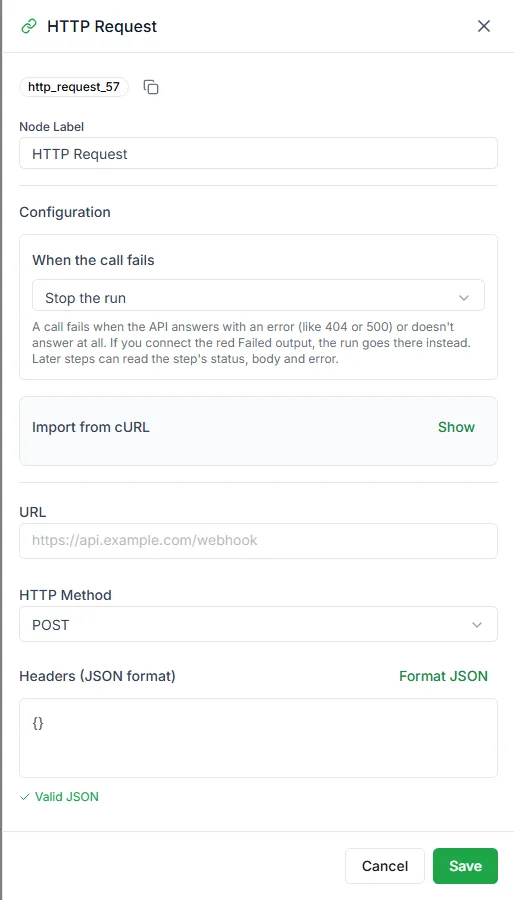
| Setting | Value |
|---|---|
| HTTP Method | POST |
| URL | Your Apps Script web app URL |
| Headers (JSON format) | {"Content-Type": "application/json"} |
| Request Body (JSON format) | See below |
Put your bot’s variables into the body:
{ "name": "{{name}}", "phone": "{{phone}}", "email": "{{email}}", "message": "{{message}}"}The step has Success and Failed outputs, so you can tell the customer if something went wrong.
Step 4: Test
Section titled “Step 4: Test”Click Test API, then check your sheet for the new row.
Step 5: Publish
Section titled “Step 5: Publish”Click Publish Now. From then on, every customer who reaches the step adds a row to your sheet.
If rows don’t appear
Section titled “If rows don’t appear”- Nothing arrives: check that the deployment is open to Anyone, and that you copied the web app URL, not the script editor’s address.
- Rows have empty cells: a variable name in the body doesn’t match what the bot saved. Check the bot’s Logs for what was collected.
Going further
Section titled “Going further”The same settings, method, URL and body, work for any API. Swap the Apps Script URL for your CRM or your own system and the bot sends data there instead.