

WhatsApp shop
With a WhatsApp shop, a chat becomes a place to buy. Once your catalogue is connected, bots can send products into a chat, and customers can browse, add to a basket and order without opening a browser.
Open Grow → Commerce → Catalogues in the left sidebar.
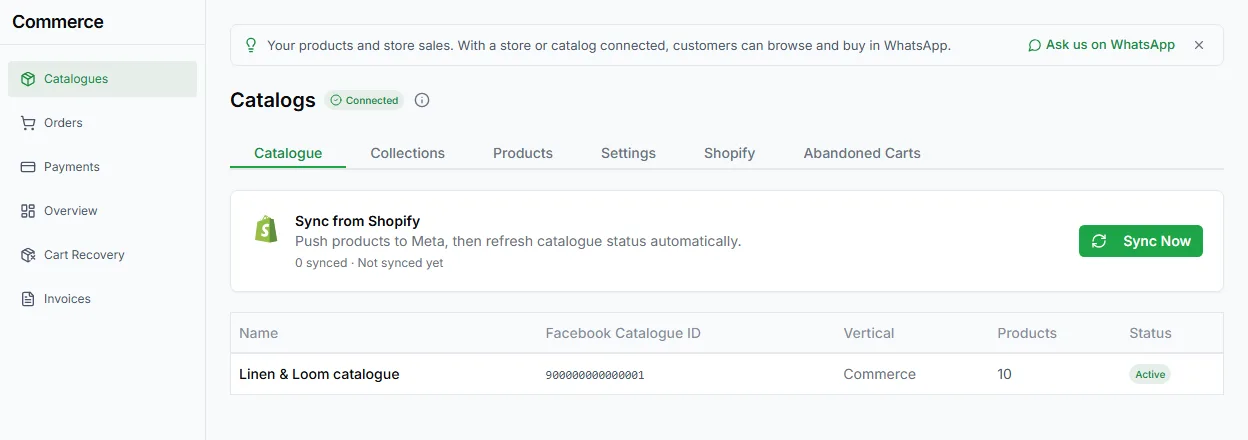
Your Meta catalogue
Section titled “Your Meta catalogue”Your products live in a Meta catalogue, which holds the photos, prices, descriptions and stock that customers see. WhatsApp and LoopChat both read from it, so a product only shows in chat once it’s in the catalogue.
Create your first catalogue
Section titled “Create your first catalogue”Before you begin
Section titled “Before you begin”You’ll need:
- A Facebook Page for your business
- A Meta business portfolio you have full control of
- Permission to create and manage catalogues for that business
- Go to Meta Commerce Manager.
- Click Get started.
- Choose to create a catalogue and continue.
- Pick the catalogue type. For physical products such as clothing, electronics or furniture, choose E-commerce.
- Choose how products get in:
- Upload product info: add products yourself, one by one or with a spreadsheet
- Connect a partner platform: sync from Shopify or WooCommerce, so the catalogue stays up to date as your store changes
What you can do in LoopChat
Section titled “What you can do in LoopChat”Once the catalogue is connected, Catalogues has these tabs: Catalogue, Collections, Products and Settings (plus Shopify, WooCommerce and Abandoned Carts if you’ve connected a store). You can:
- Sync From Meta to bring in the latest products
- Search, add, import and edit products
- Create collections
- Choose storefront options under Settings, such as showing the Add to basket button and the catalogue icon
- Re-link to WhatsApp, or disconnect the catalogue
Bots can then send products with the Send products steps. Orders customers place show under Commerce → Orders, and can start an Order based bot.