

Choose a template
The first step of a broadcast decides what you’re sending. Give the broadcast a name, then choose the message.
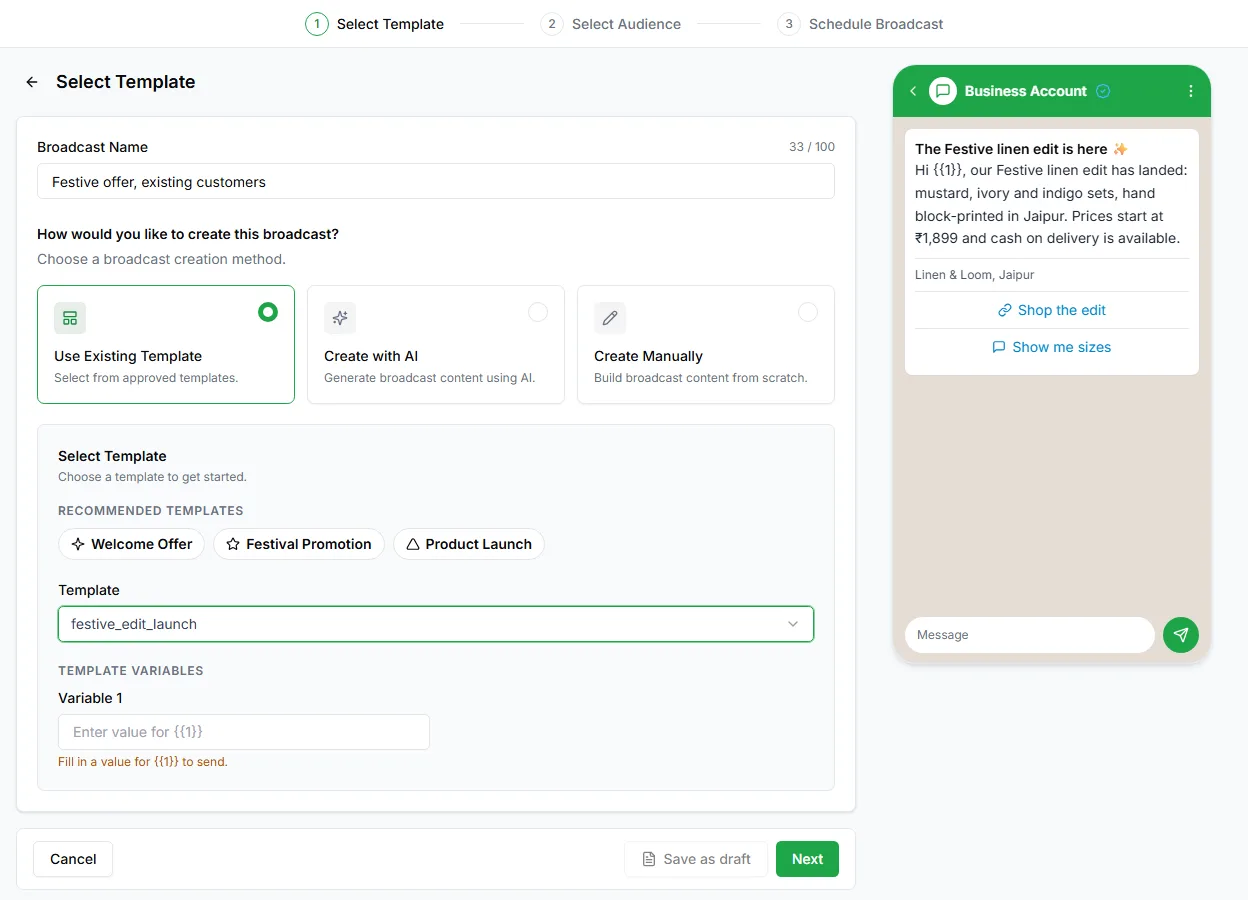
Broadcast name
Section titled “Broadcast name”Give the broadcast a clear name. Customers never see it, but it’s what you’ll search for later, so Diwali offer, existing customers beats Broadcast 4.
Three ways to choose the message
Section titled “Three ways to choose the message”Use Existing Template
Section titled “Use Existing Template”Pick one of your approved templates. This is the fastest way, and the only one you can send straight away, because the template is already approved.
Create with AI
Section titled “Create with AI”Describe what you want to send, or tap a suggestion such as Welcome Offer, Festival Promotion or Product Launch. Click Generate templates, and Regenerate if you’d like different options. Edit the one you choose before you submit it.
Create Manually
Section titled “Create Manually”Write the template yourself:
| Field | Notes |
|---|---|
| Category | Marketing, Utility or Authentication |
| Language | The template’s language |
| Header | Optional |
| Body | The message itself |
| Footer | Optional |
| Buttons | Optional, for example quick replies, a phone number or a website link |
You can also see and create all your templates under Grow → Templates.
Template variables
Section titled “Template variables”If the template has placeholders such as {{1}}, a Template variables section appears under the template. Fill in a value for each one. The preview on the right shows the message as customers will see it, and LoopChat won’t let you send while a variable is empty.
Pick the right category
Section titled “Pick the right category”Meta enforces the category, so it matters:
| Category | Use it for |
|---|---|
| Marketing | Offers, promotions and announcements. Opted-out customers don’t get these. |
| Utility | Order updates, appointment reminders, account notices |
| Authentication | One-time passwords and verification codes |
Next: Choose your audience.