

Razorpay
Connecting Razorpay brings your payments into LoopChat. Your team can see what a customer has paid without opening another dashboard, send payment links in chat, and send automatic WhatsApp messages when a payment comes in.
Connect your account
Section titled “Connect your account”- Open Configure → Integration and click the Razorpay card.
- Go to the Configuration tab.
- Enter your Razorpay API keys:
| Field | Where to find it |
|---|---|
| Key ID | Razorpay Dashboard → Settings → API Keys. It starts with rzp_test_ or rzp_live_. |
| Key Secret | Shown once, when you generate the key |
- Click Connect Account.
Once connected, the page shows your Connection Status, account name and ID, with Test Connection and Disconnect buttons.
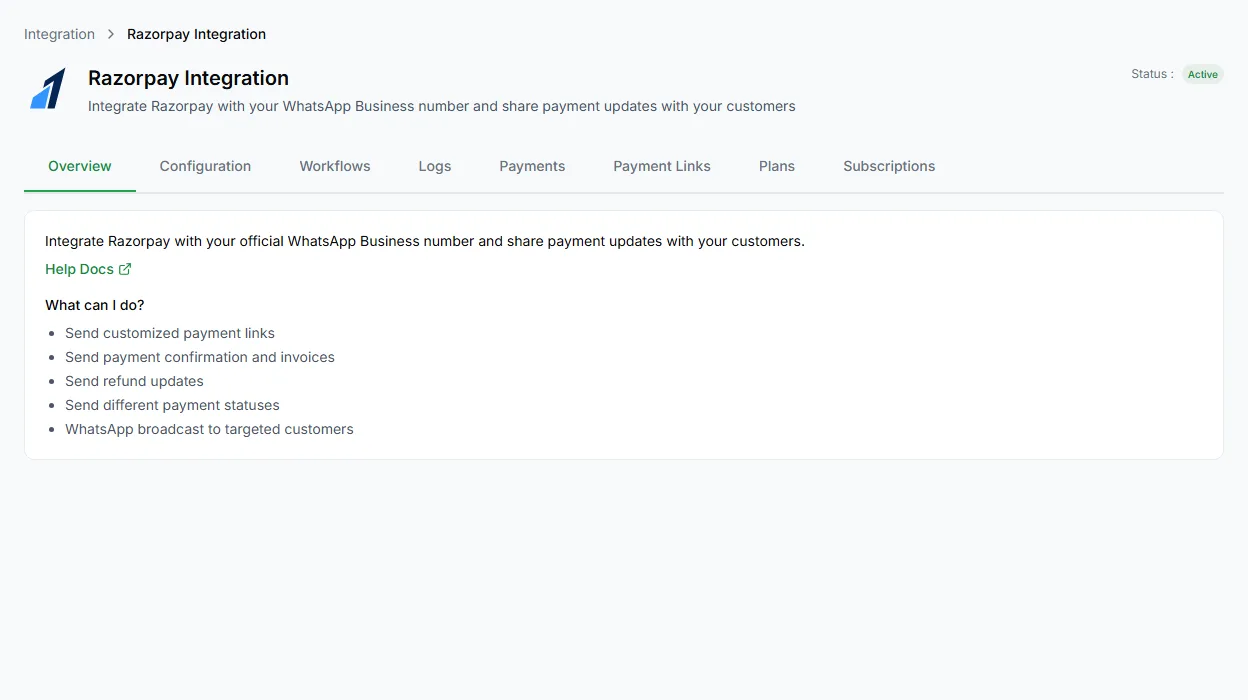
The tabs
Section titled “The tabs”| Tab | What’s there |
|---|---|
| Overview | A summary of the integration |
| Configuration | Your keys and connection status |
| Workflows | Automatic WhatsApp messages on payment events |
| Logs | Every time a payment started one of your workflows |
| Payments | Payments received, with status, amount and method |
| Payment Links | Links you’ve created |
| Plans | Plans for recurring payments |
| Subscriptions | Customers subscribed to a plan |
Payments
Section titled “Payments”The Payments tab lists payments with their Razorpay ID, amount, status, method and date. Filter by Paid, Authorized, Pending, Failed or Refunded.
Payment links
Section titled “Payment links”Create a link with an amount, currency, description and, optionally, the customer’s name, email and phone. You can also choose whether Razorpay sends its own notifications and reminders.
Payment links are the simplest way to take money over WhatsApp: create one, send it in the chat, and the customer pays from their phone.
Plans and subscriptions
Section titled “Plans and subscriptions”Plans set up recurring payments: a plan name, amount, currency, how often (daily, weekly, monthly or yearly), interval and description. Subscriptions lists customers on a plan, with its status, number of payments and the end of the current period.
Send WhatsApp messages on payment events
Section titled “Send WhatsApp messages on payment events”Use the Workflows tab to message customers when a payment is captured, fails or is refunded.
- In Razorpay, go to Accounts & Settings → Webhooks and add a webhook with the address shown on the Workflows tab.
- Choose the events:
payment.captured,payment.failed,refund.processed,payment_link.paid,payment_link.expiredandpayment_link.cancelled. - Copy the webhook secret from Razorpay and save it on the Workflows tab.
- Build a bot that starts with the Razorpay Payment trigger. It has outputs for Payment captured, Payment failed and Refund processed.
The Logs tab then lists every payment that started a workflow.
Taking payments in a bot
Section titled “Taking payments in a bot”The Collect Payment step sends a payment request in the middle of a conversation. See More flow steps.
Other payment integrations
Section titled “Other payment integrations”The Integration page also has Cashfree, PayU and WhatsApp Payments, each with its own card and settings.