

Bots in LoopChat
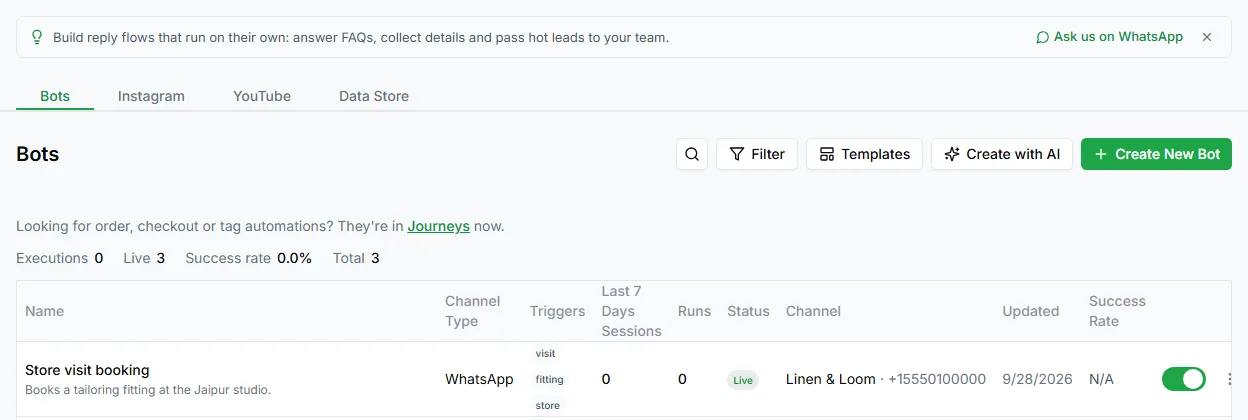
A bot is a flow of connected steps that runs when something starts it, usually a customer’s message. Open Automate → Bots in the left sidebar to see your bots.
Create a bot
Section titled “Create a bot”On the Bots page you have three ways to start:
- Create New Bot opens a short form, then an empty canvas.
- Create with AI lets you describe the bot in plain words, for example “Answer delivery questions and hand anything about refunds to my team”. LoopChat builds a first draft that you then edit.
- Templates gives you ready-made bots to copy and adjust.
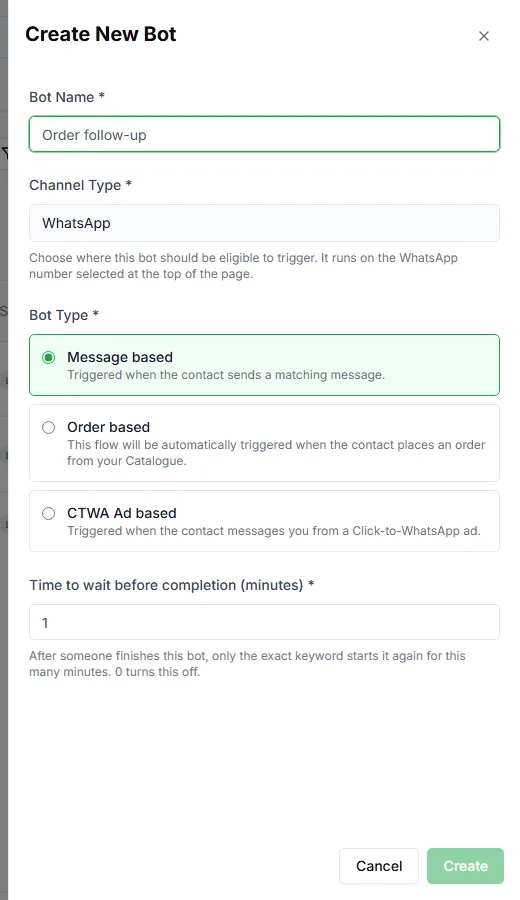
The Create New Bot form asks for:
| Field | What to enter |
|---|---|
| Bot Name | A name your team will recognise |
| Channel Type | |
| Bot Type | What starts the bot (see below) |
Bot types
Section titled “Bot types”| Bot type | Starts when |
|---|---|
| Message based | A customer sends a message. You choose keywords, or let any message start it. |
| Order based | A customer places an order from your WhatsApp catalogue. |
| CTWA Ad based | A customer messages you from a Click-to-WhatsApp ad. |
For message based bots you also set Time to wait before completion (minutes): how long the bot waits for a reply before it ends the session.
The flow editor
Section titled “The flow editor”Opening a bot gives you the editor.
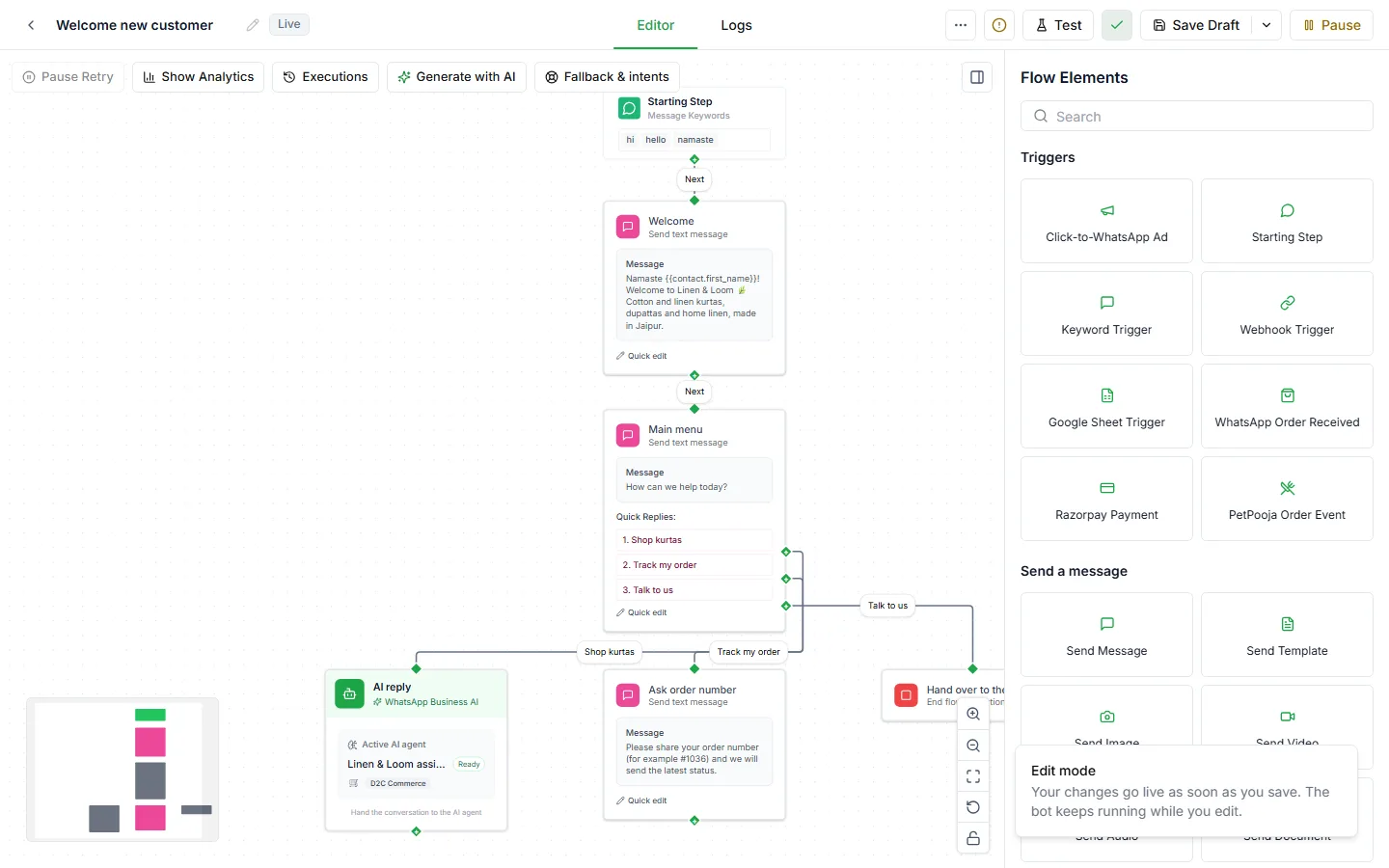
The canvas holds your steps and the lines between them. Drag to move around, scroll to zoom, and use the zoom controls at the bottom.
The palette on the right lists every step you can add, in six groups: Triggers, Send a message, Ask a Question, Logic & Flow Control, Integrations and Actions. Search finds a step in any group. Drag a step onto the canvas, or click it, to add it.
The top bar has the bot name, the Editor and Logs tabs, Test, Save Draft, Pause or Resume, and Publish Now.
Build a flow
Section titled “Build a flow”- Start from the Starting Step (or the trigger your bot type gave you).
- Add the steps that should follow it.
- Connect them by dragging from a step’s output dot to the next step.
- Double-click a step, or use its pencil icon, to open its settings.
- Click Test to try the bot yourself, then Publish Now.
Steps with more than one outcome, such as Condition, Switch and Ask Keyword, have one output per result, so each answer can go somewhere different. Many message steps also have an optional No reply output for customers who don’t answer in time.
Editing a live bot
Section titled “Editing a live bot”When a bot is live, your changes go live as soon as you save. The bot keeps running while you edit. If you’re making big changes, Pause the bot first, make your edits, then Resume it.
The Logs tab shows every run of this bot: the contact, phone number, when it started and its status (for example Running, Completed, Failed or Waiting for Response). The totals at the top show runs, completed and failed runs, messages sent, delivered, and the delivery rate.
Logs are how you find where customers drop off. A bot that looks fine on the canvas often loses people at one particular question.
Next steps
Section titled “Next steps”- Every step in the palette: More flow steps
- Rename, duplicate, pause or archive bots: Bot management
- Call an outside service from a bot: Connect WhatsApp and Google Sheets