

Business profile and number status
Open Settings → WhatsApp Channel. The card at the top shows your number’s health; the tabs below let you edit your profile and connect your own software.
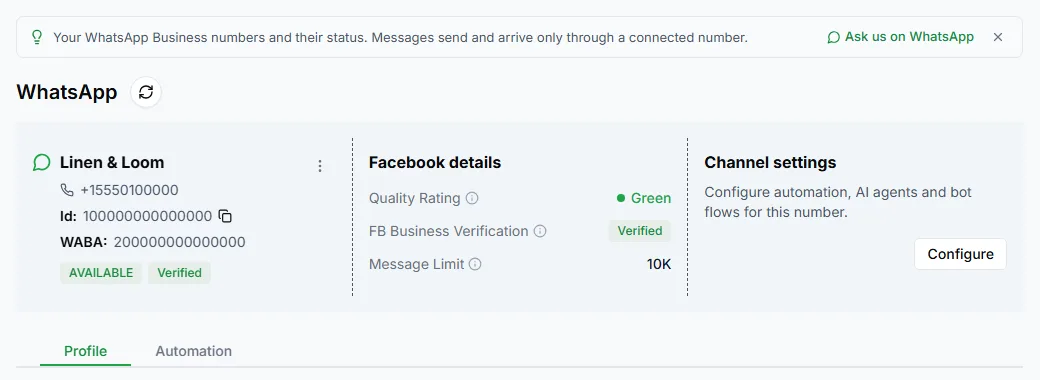
The number’s card
Section titled “The number’s card”Your number
Section titled “Your number”- Your business name
- The connected phone number
- Id: the phone number’s id, with a copy button
- WABA: your WhatsApp Business Account id
- A status label: AVAILABLE, INACTIVE, DISCONNECTED, NEEDS RECONNECT or LOCKED BY META, plus Verified once Meta has verified your business
Copy the Id when you contact support about a number. It identifies the number exactly.
Facebook details
Section titled “Facebook details”- Quality Rating: WhatsApp’s rating for this number: green, yellow or red
- FB Business Verification: whether Meta has verified your business
- Message Limit: how many customers you can message each day
Together, these decide how much you can send. See Sending limits and quality rating.
Channel settings
Section titled “Channel settings”Configure opens the Automation tab, where you connect your own software. See Connect your own bot.
The ⋮ menu
Section titled “The ⋮ menu”- Connect with Meta, Reconnect to Meta or Reconnect WhatsApp: run the Meta connection again if the number needs it
- Show PIN: see the number’s two-step verification PIN (owners and admins only)
- Add Account: connect another number
- Disconnect: unlink the number. Delete Account appears instead when the number has no working connection.
The Profile tab
Section titled “The Profile tab”The Profile tab edits what customers see when they open your business profile in WhatsApp. Click Edit Profile, make your changes, then save, or click Cancel to undo them.
| Field | Limit |
|---|---|
| WhatsApp Display Picture | Your logo |
| Address | Up to 256 characters |
| Business Description | Up to 512 characters |
| Up to 128 characters | |
| Vertical | Your industry |
| Website URLs | Up to 2 |
| About | Up to 139 characters: the short line under your name |
More than one number
Section titled “More than one number”If you’ve connected more than one number, each has its own card, profile, quality rating and sending limit.
Need help? Email hello@loopchat.inBook a demo · Open LoopChat