

Send or schedule
The last step decides when your broadcast goes out and how replies are handled.
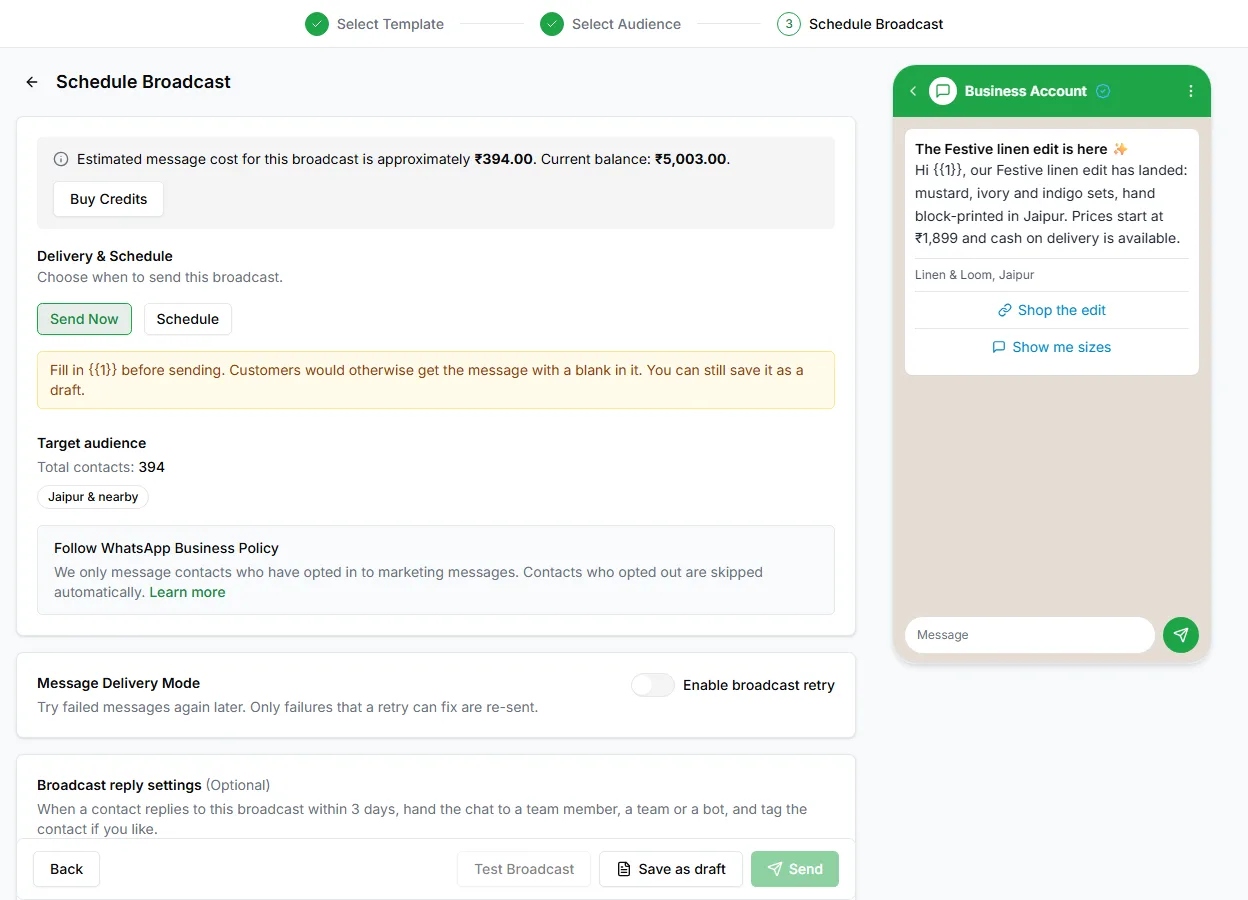
Preview
Section titled “Preview”The step shows a preview of the message as customers will see it, with variables filled in. Read it as a customer would. This is your last chance to catch a wrong variable or an unfinished sentence.
Cost estimate
Section titled “Cost estimate”The top of the step shows roughly what the broadcast will cost and your current credit balance, with a Buy Credits button if you need more. See WhatsApp and AI credits.
Send now or schedule
Section titled “Send now or schedule”Under Delivery & Schedule, choose when to send this broadcast:
- Send Now: sending starts as soon as you confirm.
- Schedule: pick a date and time, and the broadcast goes out then.
Message delivery mode
Section titled “Message delivery mode”Turn on Enable broadcast retry to try failed messages again later, and choose the Retry type: Smart retry or Manual retry. Only failures that a retry can fix are re-sent.
When customers reply
Section titled “When customers reply”Under Broadcast reply settings (Optional), choose who handles replies that arrive within 3 days: a team member, a team or a bot. You can also Tag contacts who reply, so you can follow up with everyone who responded.
Test first
Section titled “Test first”Click Test Broadcast to send the message to your test numbers before it goes to everyone. Check it on a real phone.
Click Send or Schedule, then confirm with Send now or Schedule broadcast. You’re taken back to the Broadcast page, where it shows with its status.
Sending limits
Section titled “Sending limits”WhatsApp limits how many customers a number can message each day, based on your quality rating and verification. If a broadcast is bigger than your remaining limit, the extra contacts are skipped and shown in the report as Skipped — daily limit.
You can see your current limit under Settings → WhatsApp Channel, next to Message Limit. See Sending limits and quality rating.
After sending
Section titled “After sending”Follow delivery and replies in the broadcast’s report. See Broadcast reports.