

Team inbox
Open Chat in the left sidebar. Every conversation on your connected numbers arrives here, for everyone on your team to see.
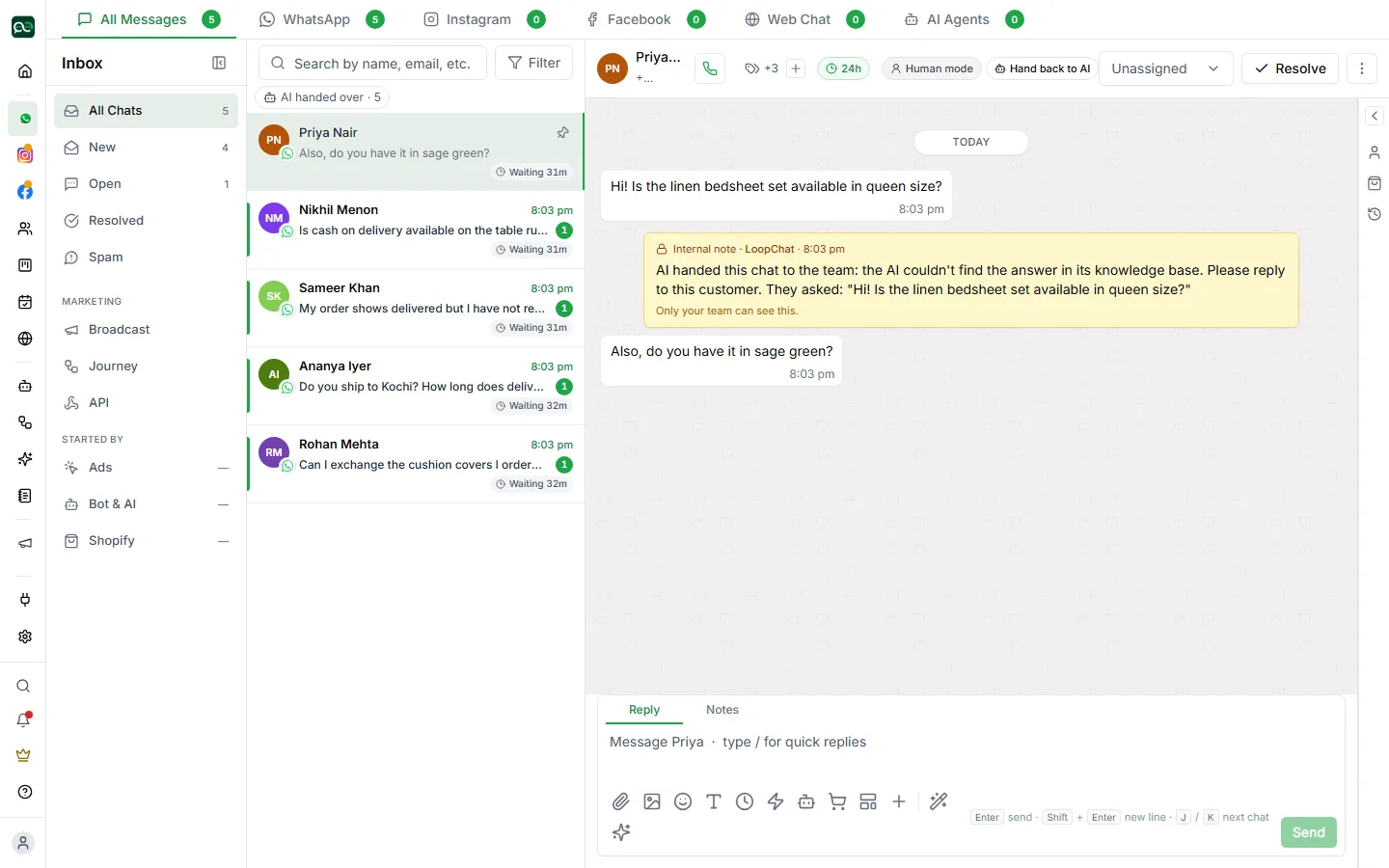
Find your way around
Section titled “Find your way around”The tabs along the top switch between channels: All Messages, WhatsApp, and any other channels you use, such as Web Chat.
The Inbox column on the left sorts conversations:
- All Chats: everything
- New: chats nobody has picked up yet
- Open: chats in progress
- Resolved: chats that have been dealt with
- Spam: chats marked as spam
Below that, Marketing shows chats that started from a Broadcast, a Journey or the API, and Started by shows chats that began from Ads, a Bot & AI, or Shopify.
Assign a chat
Section titled “Assign a chat”The assignee picker is at the top of an open chat. From it you can:
- Assign to me
- Assign to a teammate (under Team)
- Assign to a team (under Teams): it goes to the least busy member
- Hand the chat to a bot (under Chatbot) or an AI agent (under AI Agents & Bots), which then replies automatically
- Unassign it, so it goes back to the queue
You can reassign a chat at any time. Messages, notes and history move with it, so a chat can pass from a bot to a person and back without the customer noticing.
Reply or add a note
Section titled “Reply or add a note”The message box at the bottom has two tabs, Reply and Notes.
Anything you write on Notes is a private note. It’s saved in the chat for your team only and is never sent to the customer. Type @ to mention a teammate. Notes are how the next person knows what happened before they arrived.
The 24-hour window
Section titled “The 24-hour window”WhatsApp only lets you send normal replies within 24 hours of the customer’s last message. The label at the top of the chat shows how long is left, for example 24h, or Window closed once it has passed. After that, you can only send an approved template. See Start a new chat.
Schedule a follow-up
Section titled “Schedule a follow-up”Use Schedule follow-up so a chat isn’t forgotten. You can pick up to 5 send times, all inside the remaining 24-hour window, so WhatsApp will allow the message when the time comes. If the customer replies first, that follow-up is skipped.
Follow-ups you’ve already set are listed under Already scheduled, each with Cancel.
Tags group chats by topic, status or priority. Click the tag icon at the top of the chat and use Add tag to pick an existing tag or create a new one. You can then filter chats by tag.
More actions
Section titled “More actions”The ⋮ menu at the top of a chat has:
- Summarise with AI: a quick summary of the chat so far
- Ask AI about this chat: ask a question about the conversation
- View full profile: open the contact
- Active flows: see bots running in this chat
- Priority: High, Medium, Low or No priority
- Mark as spam (or Not spam)
- Block (or Unblock): stop messages to and from this contact
- Delete chat: removes the chat from your inbox. The messages and the contact are kept, and the chat comes back if the customer messages again.
Contact details beside the chat
Section titled “Contact details beside the chat”Click Show details to open the panel on the right. The User Info tab shows the contact’s name, phone, email, Marketing Opt In, contact owner, lead stage and any extra details. The Notes tab holds notes about the contact. Click Hide details to close it.
Resolve a chat
Section titled “Resolve a chat”When a request is dealt with, click Resolve. The chat moves to Resolved and keeps its full history. If the customer needs more help, reopen it from the message box. Bots can also resolve chats with the Conversation action step.