

Add contacts
Contacts live under Contacts in the left sidebar. Every chat, broadcast and bot run is linked to a contact, so this is the list the rest of LoopChat is built on.
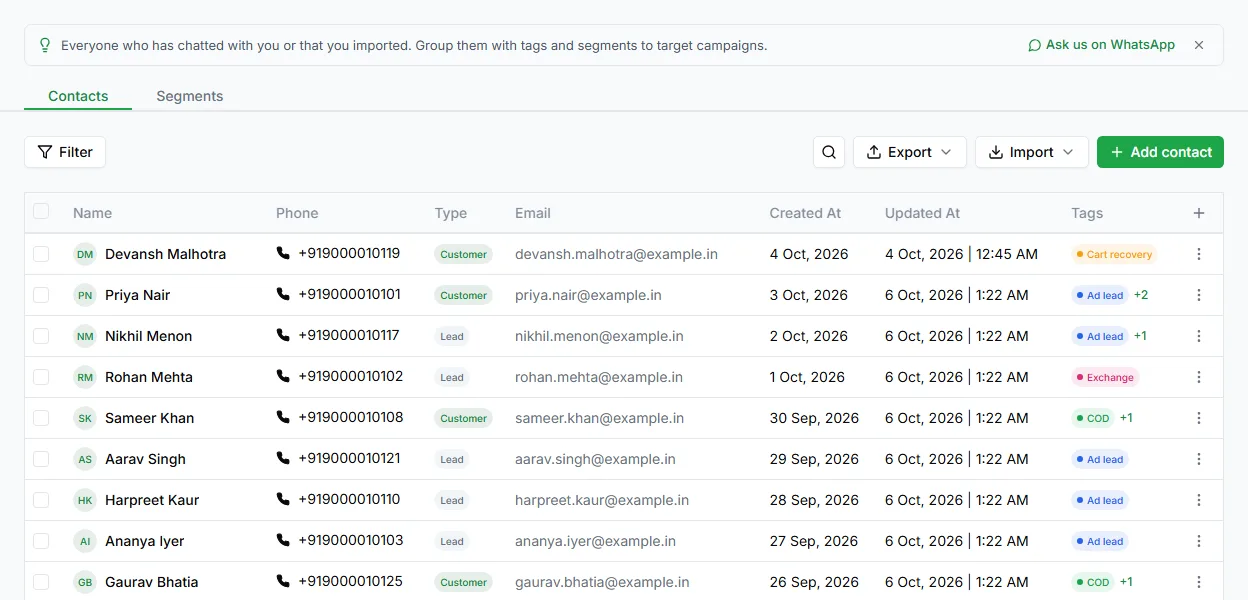
Three ways contacts are added
Section titled “Three ways contacts are added”- One at a time, from the Contacts page
- In bulk, by importing a file
- Automatically, when a customer messages your WhatsApp number for the first time
Add one contact
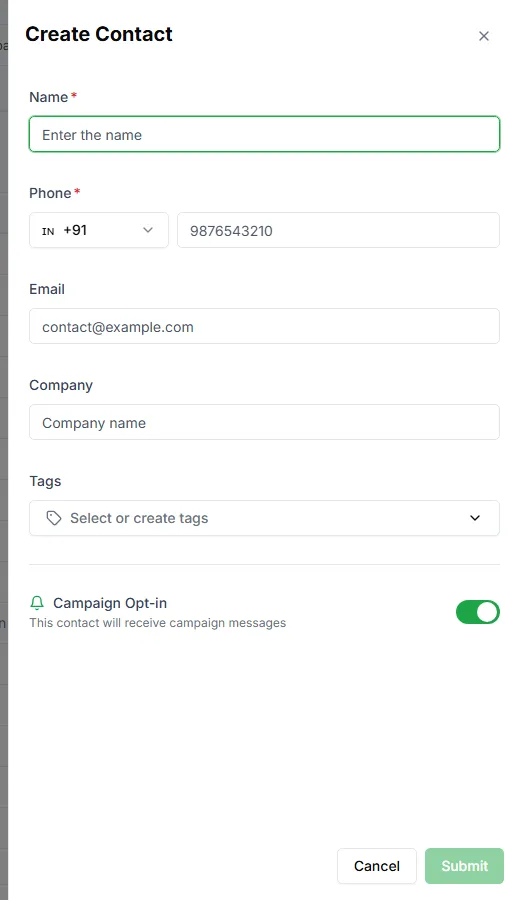
Section titled “Add one contact”On the Contacts page, click Add contact. The Create Contact form asks for:
- Name (required)
- Phone (required), with the country chosen from the list
- Company
- Tags
- Any custom fields your workspace has (set them up in Settings → Contact Fields)
Click Submit to save.
Campaign opt-in
Section titled “Campaign opt-in”The form has a Campaign Opt-in switch. Leave it on for customers who have agreed to receive promotional messages, and turn it off for those who haven’t. Contacts who are opted out don’t get broadcasts or marketing templates. See Marketing opt-in for new contacts.
Import contacts
Section titled “Import contacts”- On the Contacts page, click Import and choose to import contacts.
- Download sample: get the sample file as CSV or Excel so your columns match. It has the columns name, phone_number, email, tags and owner.
- Upload file: fill in your data and upload it.
- Map fields: match your file’s columns to LoopChat’s contact fields. Columns LoopChat doesn’t recognise become custom fields.
On the last step, tick These contacts agreed to get marketing messages from us on WhatsApp only if that’s true for everyone in the file.
If a phone number in the file is already saved, LoopChat updates that contact instead of creating a duplicate.
Contacts created automatically
Section titled “Contacts created automatically”When someone messages your WhatsApp number and there’s no contact for them, LoopChat creates one from the details WhatsApp provides. That’s why your list grows without anyone adding to it, and why importing never creates duplicates of the same number.
Created and updated dates
Section titled “Created and updated dates”Every contact shows when it was added (Created At) and last changed (Updated At), so you can tell a customer who found you last week from one who’s been with you for years.